

Okta
Log in to ReadMe using Okta
Connect Okta as a SAML SSO provider so members of your organization authenticate with Okta and access your ReadMe projects.
You'll need ReadMe IDP info as part of the set up. Instructions on finding IDP configuration values are here.
Create An Okta Application
Start by creating a new, custom SAML application in Okta. Don't use Okta's pre-built ReadMe app, as your connection needs the custom SAML settings that only a custom app supports.
- Go to Applications in your Okta admin dashboard. Make sure you're using the Classic UI.
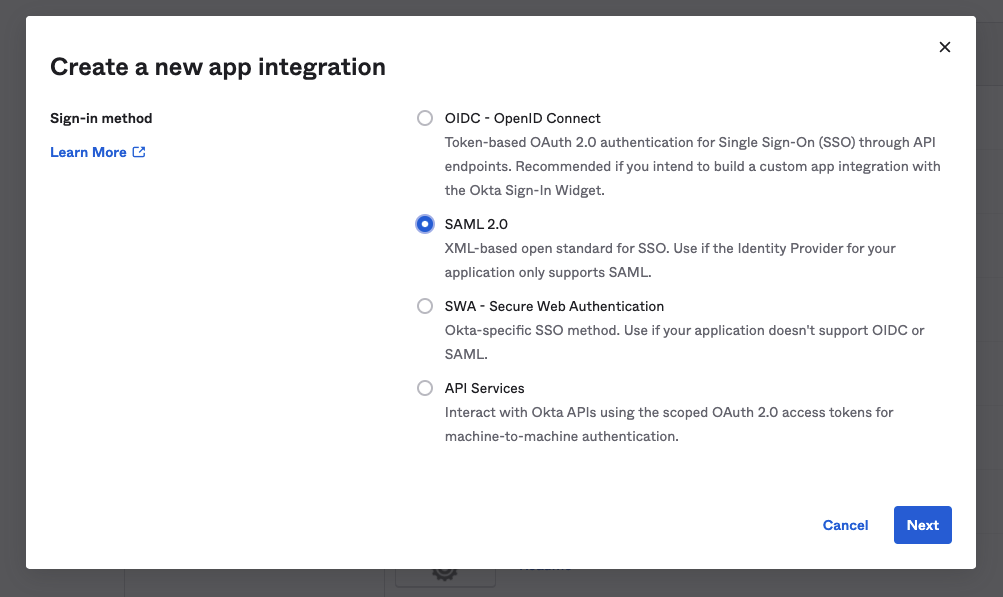
- Click Create New App, and choose a custom app rather than the default ReadMe app in the Okta catalog.
- Select SAML 2.0 as the sign-in method.
Configure SAML Settings
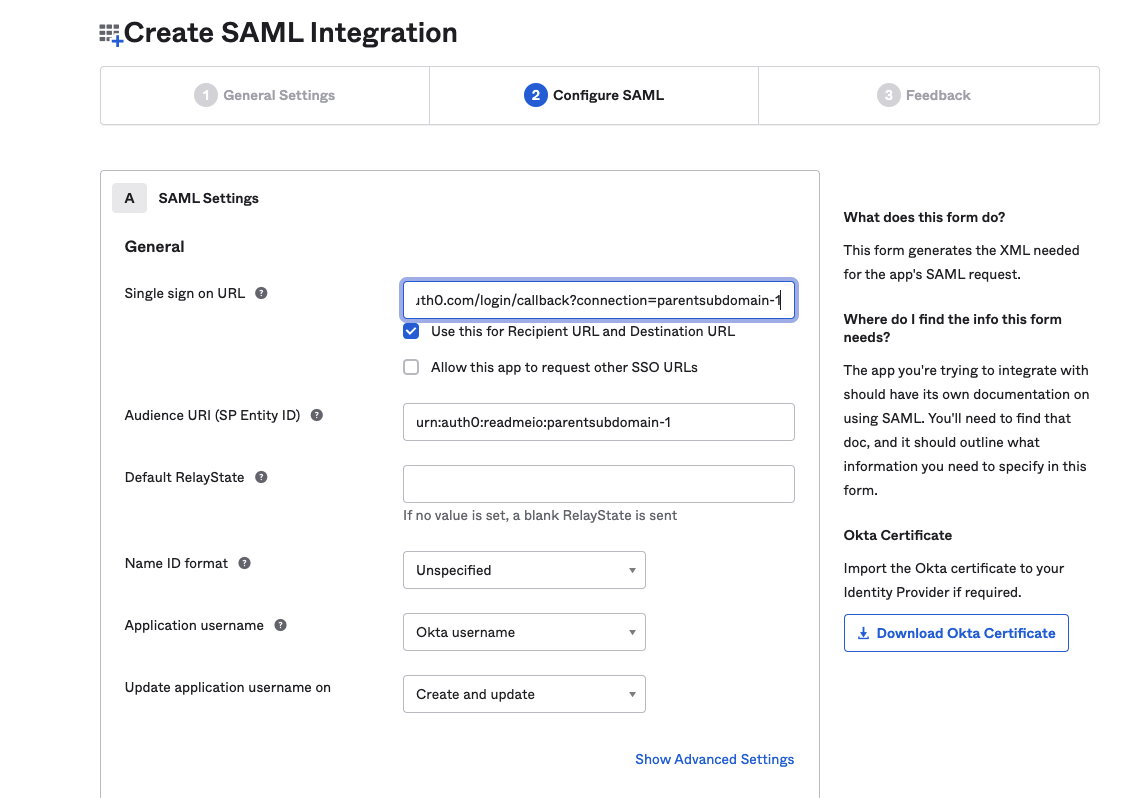
Next, map your Okta application to the SAML configuration ReadMe generated for your connection.
- Set the Single Sign-On URL to the value listed under IDP Configuration on the Teammates page. It should look something like this:
https://readmeio.auth0.com/login/callback?connection=parentsubdomain-1 - Set the Audience URI to the corresponding value from the same section. It should look something like this:
urn:auth0:readmeio:parentsubdomain-1 - Add the following attribute statements:
- If you're using group mappings, add the following group attribute statement. Read more about group mappings.
Finish Okta Setup
With your SAML settings configured, save the application and retrieve the credentials ReadMe needs.
- Save the application in Okta to finish creating it.
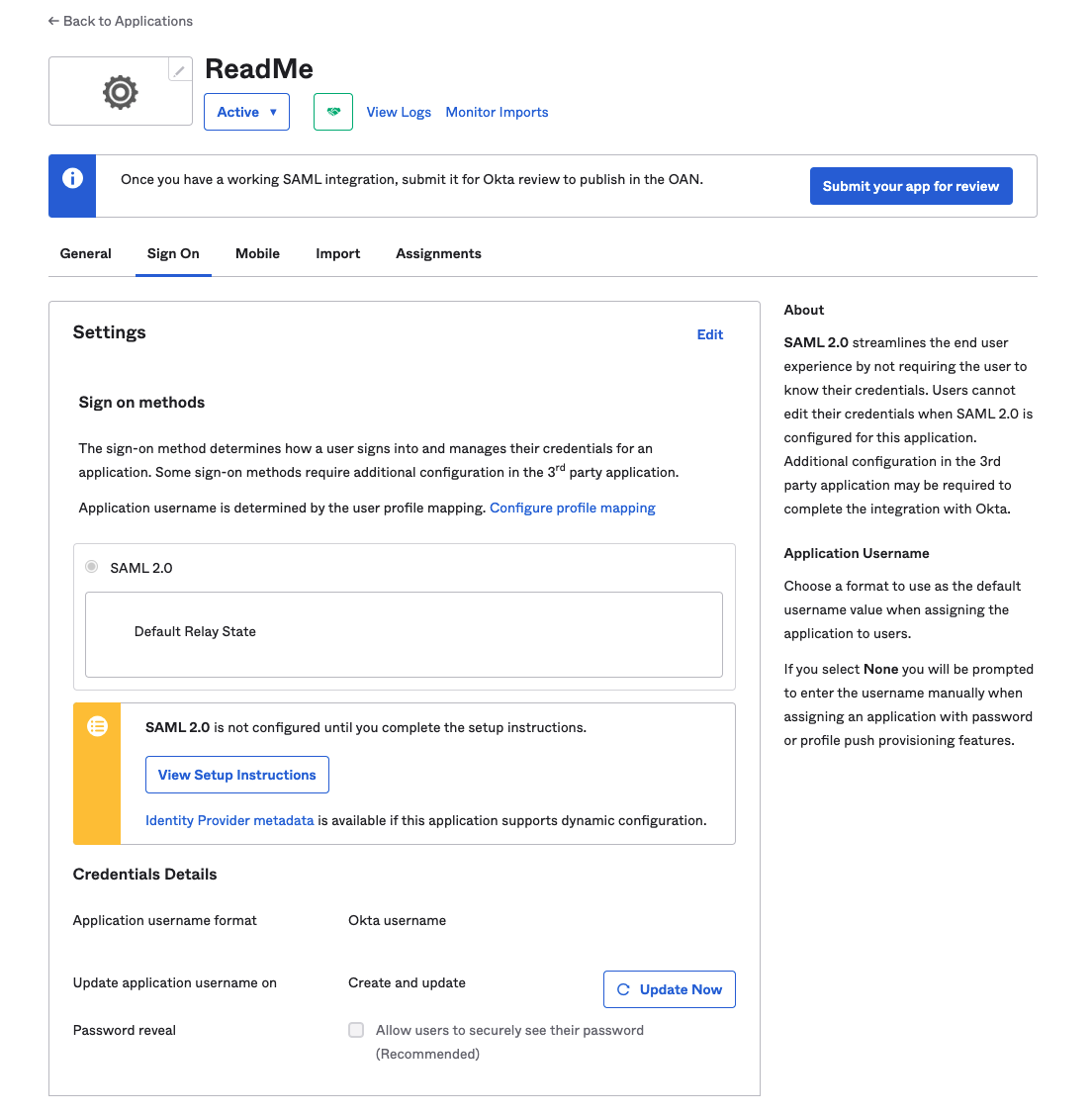
- Open the Sign On tab in your application settings and select View Setup Instructions. This gives you all the credentials you need to complete setup on the ReadMe side.
ReadMe Setup
Finally, bring the credentials from Okta back into your ReadMe configuration.
- Enter the values from Okta's setup instructions into your SAML configuration in ReadMe.
The screenshots below are from ReadMe's Okta dev console test account, but all settings are the same from the Classic Okta UI.
Updated 3 months ago