

Single Sign-On (SSO)
Connect your identity provider and let Teammates sign in with SSO
Single sign-on (SSO) lets your Teammates log in to ReadMe using your organization's existing SAML 2.0 identity provider, instead of a separate ReadMe password. Set it up once in your Enterprise Group dashboard, and it applies across all projects in your group.
Single Sign-On is an Enterprise feature. View Upgrade to Enterprise and contact [email protected] to learn more.
Supported Providers
ReadMe supports most SAML 2.0 based SSO providers, including:
Implement SSO
With SAML selected, configure your identity provider to work with the SSO connection ReadMe generates for your Enterprise Group.
- Navigate to the Teammates setting in your Enterprise Group dashboard.
- Choose SAML from the Single Sign-On dropdown, then click Configure.
- Within the configuration, add the following to your identity provider:
- IDP Configuration
- Attribute Statements
- Group Attribute Statements
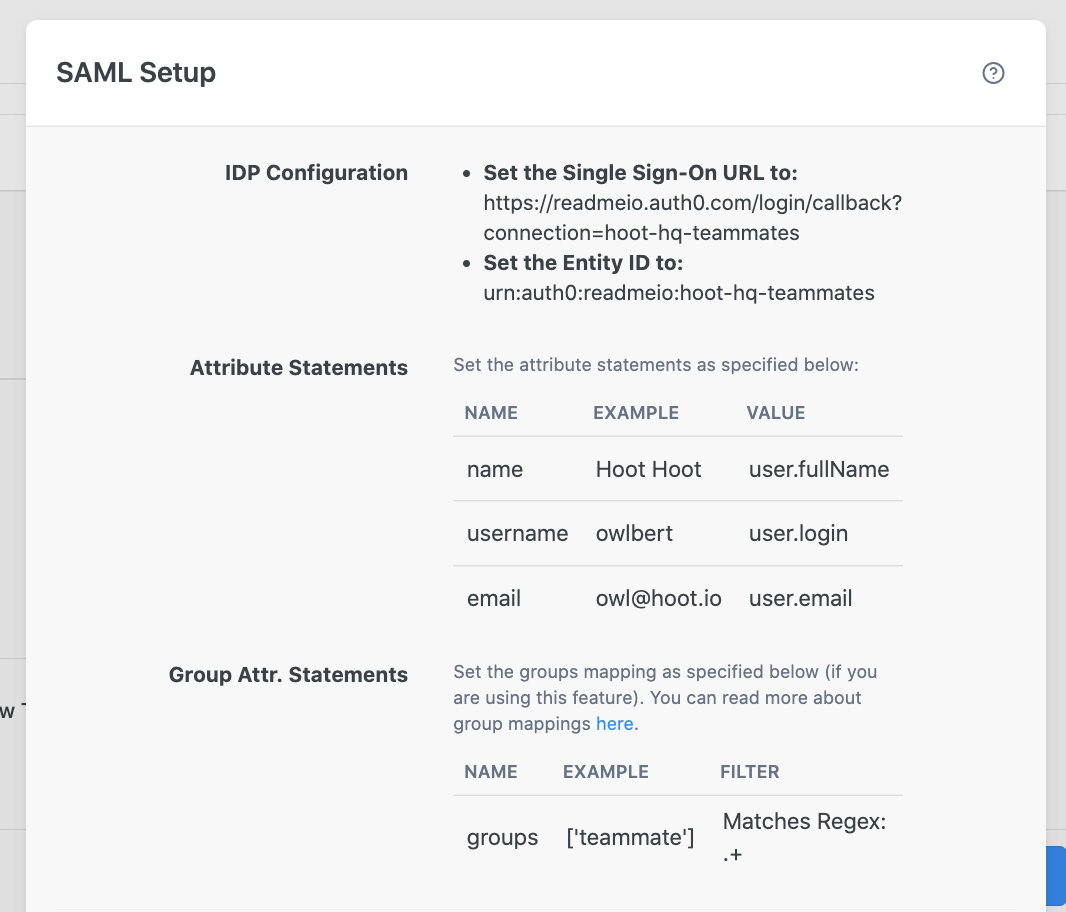
Make sure the Single Sign-On URL and Entity ID include your Enterprise Group name with
-teammatesat the end. This is your connection name.
Log In Via SSO
Once your connection is set up, Teammates log in through your SSO login URL at https://dash.readme.com/login/sso/<CONNECTION_NAME>. They'll see every project associated with the Enterprise account, but only gain access to a project after an Admin adds them.
SSO Login Permissions
By default, a member who signs in with SAML has no access to your projects. Access to SAML does not grant access to a ReadMe project.
There are two ways to grant a user access through the permission system:
- Approve a request. As Teammates log in through your identity provider, they can request access to a project. An Admin approves or rejects each request.
- Invite directly. After your SAML connection is set up, add new Teammates with the Invite option.
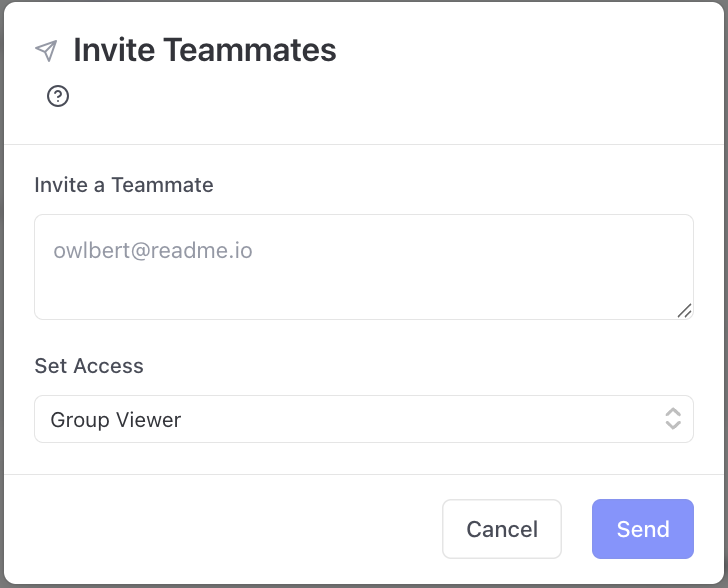
On the Teammates page, Admins specify whether a new user is a Group Admin, Group Viewer, Project Admin, or Project Viewer. For details on automatically provisioning permissions from your identity provider, see Groups Mapping.
Updated last month