

Auth0
Log in to ReadMe using Auth0
Connect Auth0 as a SAML SSO provider to allow members of your organization to authenticate with Auth0 and access your ReadMe projects.
Create an Application
Start by creating a new application in Auth0 for ReadMe.
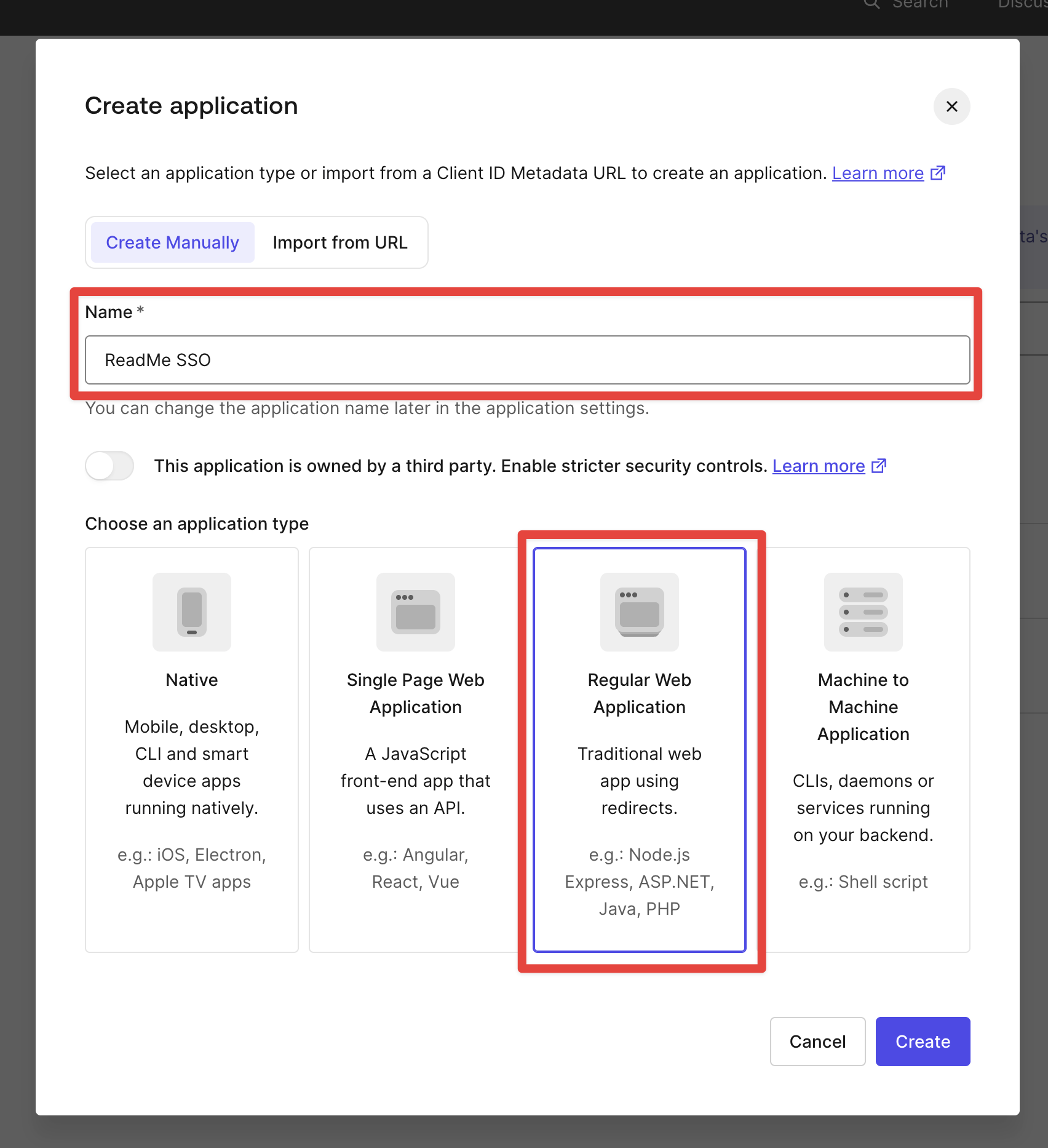
- In the Auth0 dashboard, go to Applications > Applications and click Create Application.
- Enter a name (e.g., ReadMe SSO).
-
Select Regular Web Application for the application type.
-
Click Create to create your app.
Configure SAML Settings
Next, exchange configuration values between ReadMe and Auth0.
-
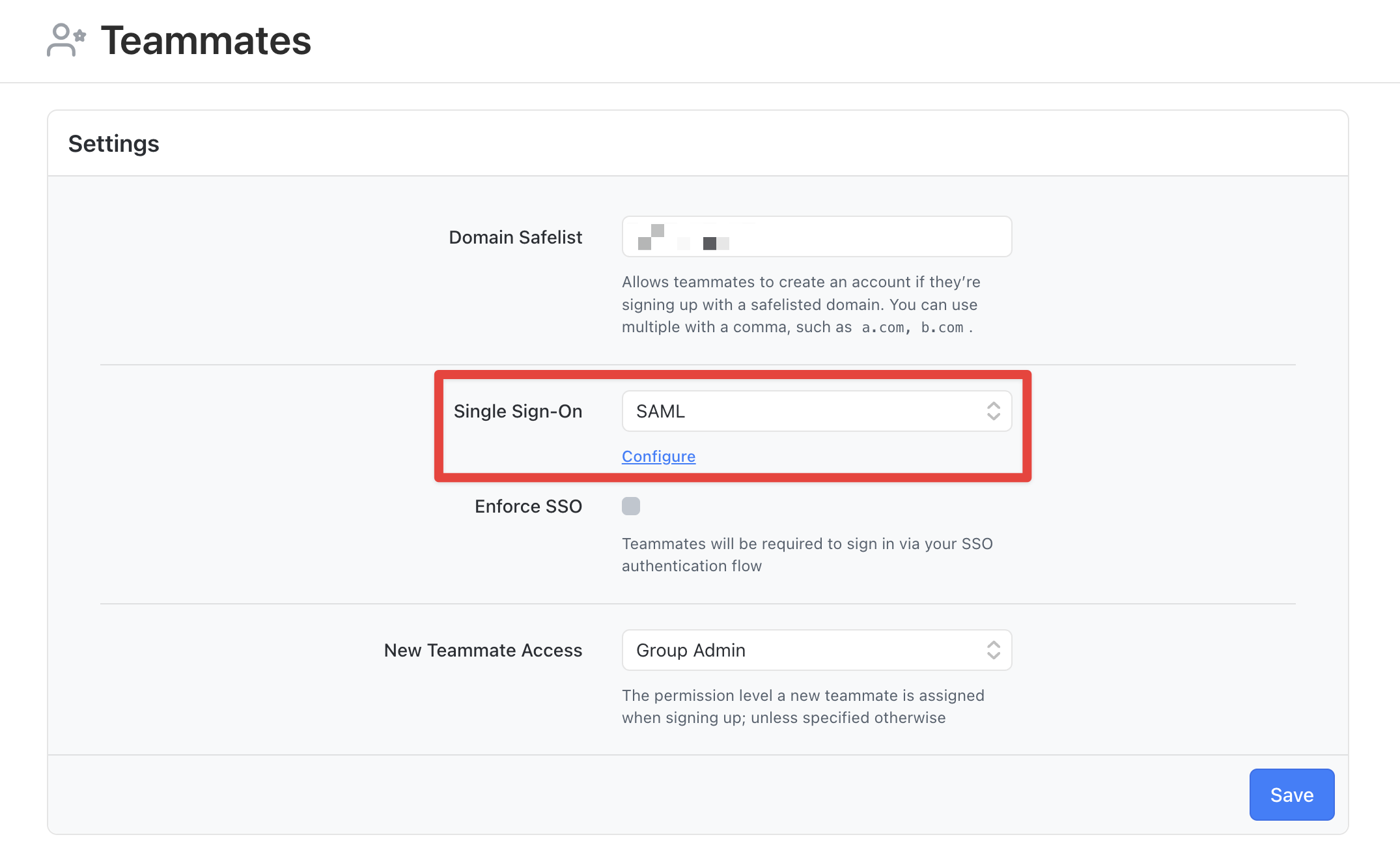
Go to Teammates in your ReadMe group dashboard.
-
Select SAML from the Single Sign-On menu, then click Configure.
-
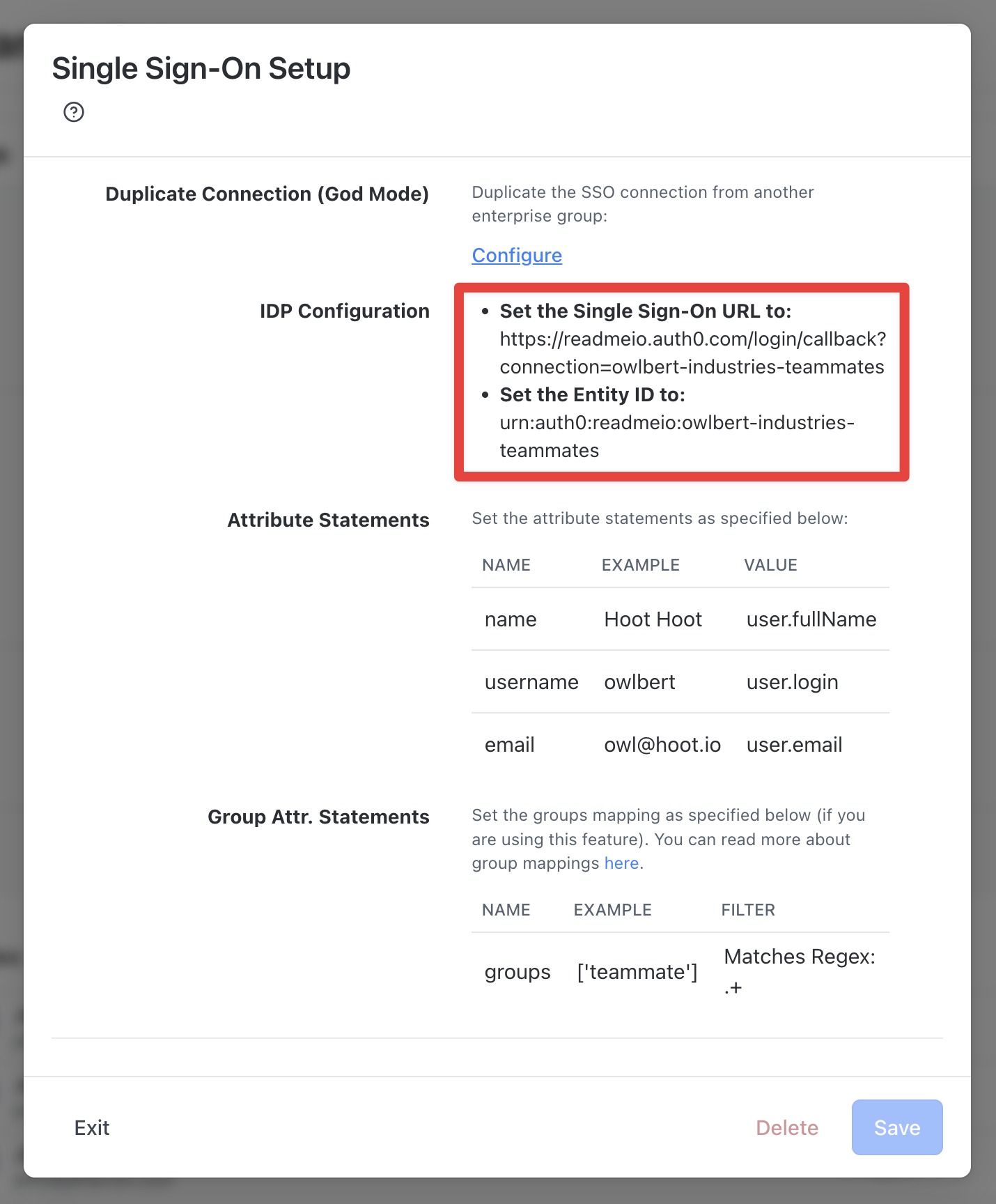
Record the Single Sign-On URL to use in your Auth0 configuration.
-
Record the Entity ID value to use in your Auth0 configuration.
-
Leave ReadMe's settings open—you'll return to them later.
-
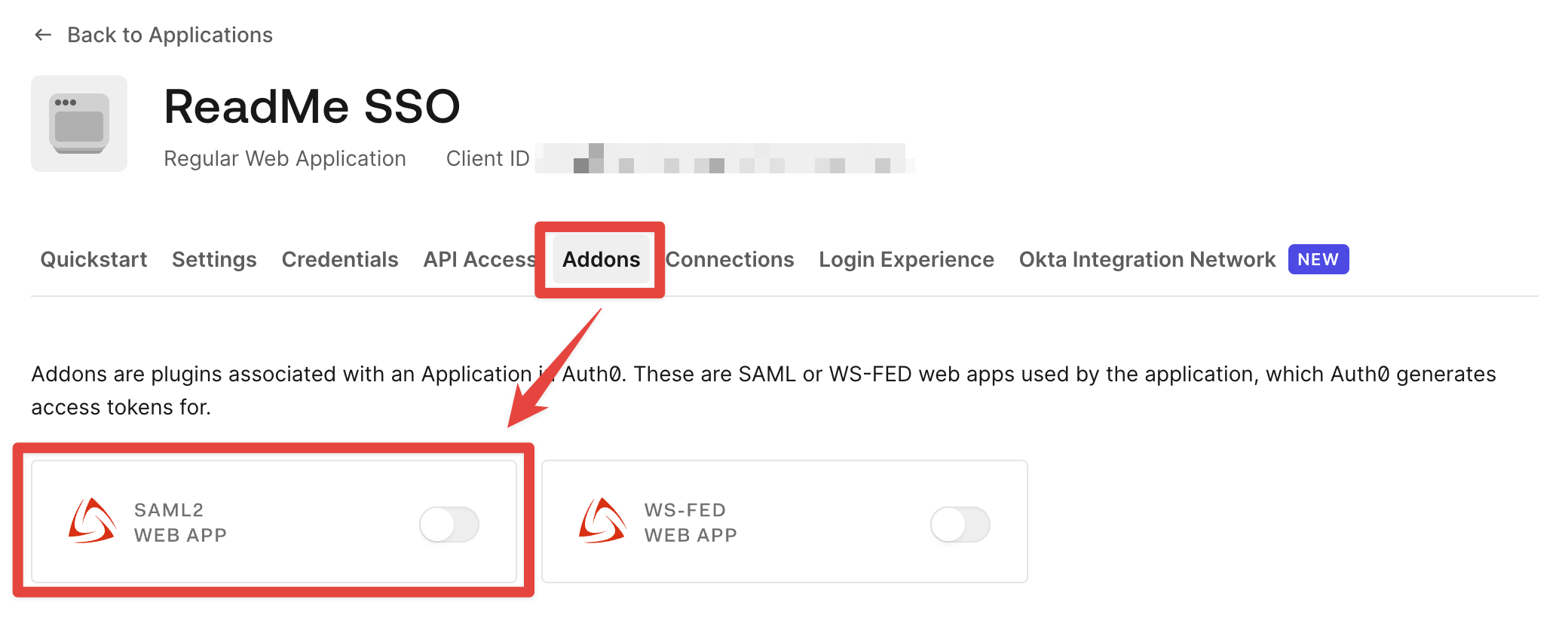
Return to Auth0. From the application settings screen, select the Addons tab.
-
Select the SAML2 Web App option.
-
In the SAML2 Web App config modal, select the Settings tab.
-
Enter the single sign-on URL from step 8 as the Application Callback URL.
-
Enter the entity ID from step 9 as the audience in Settings, formatted as a JSON object.
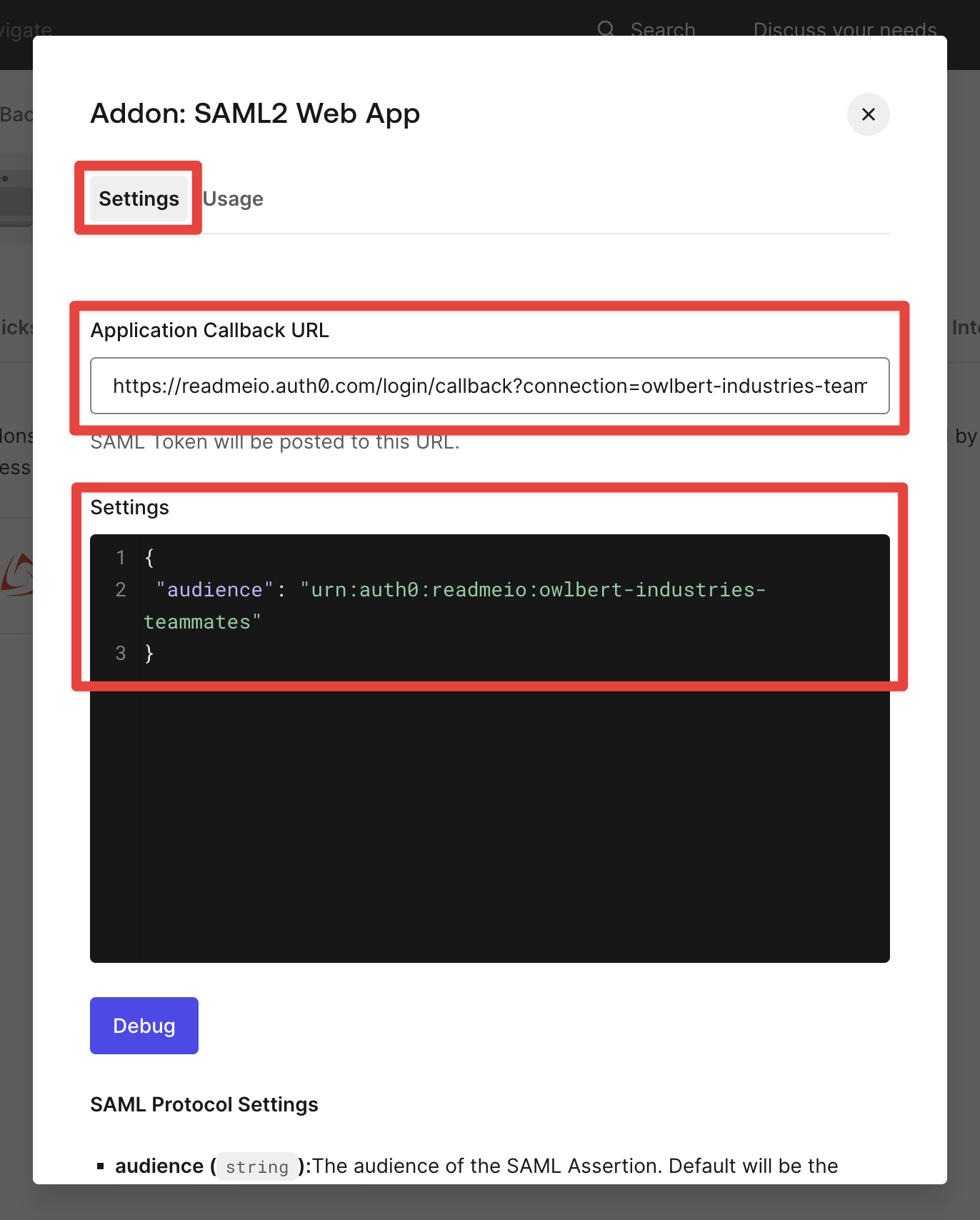
- Click Enable.
Certificate and Login URL
With the basic configuration saved, bring your certificate and login URL back to ReadMe.
- Select the Usage tab in Auth0's SAML2 Web App config modal.
- Click the Download Auth0 certificate link to save a copy of the cert to your local machine.
- Copy the Identity Provider Login URL.
- Back in your ReadMe SSO configuration settings, enter the login URL from the previous step in the Single Sign-on URL field.
- Open the downloaded certificate file in a plain text editor, copy its contents exactly, and paste them into the Public Key Certificate field in ReadMe.
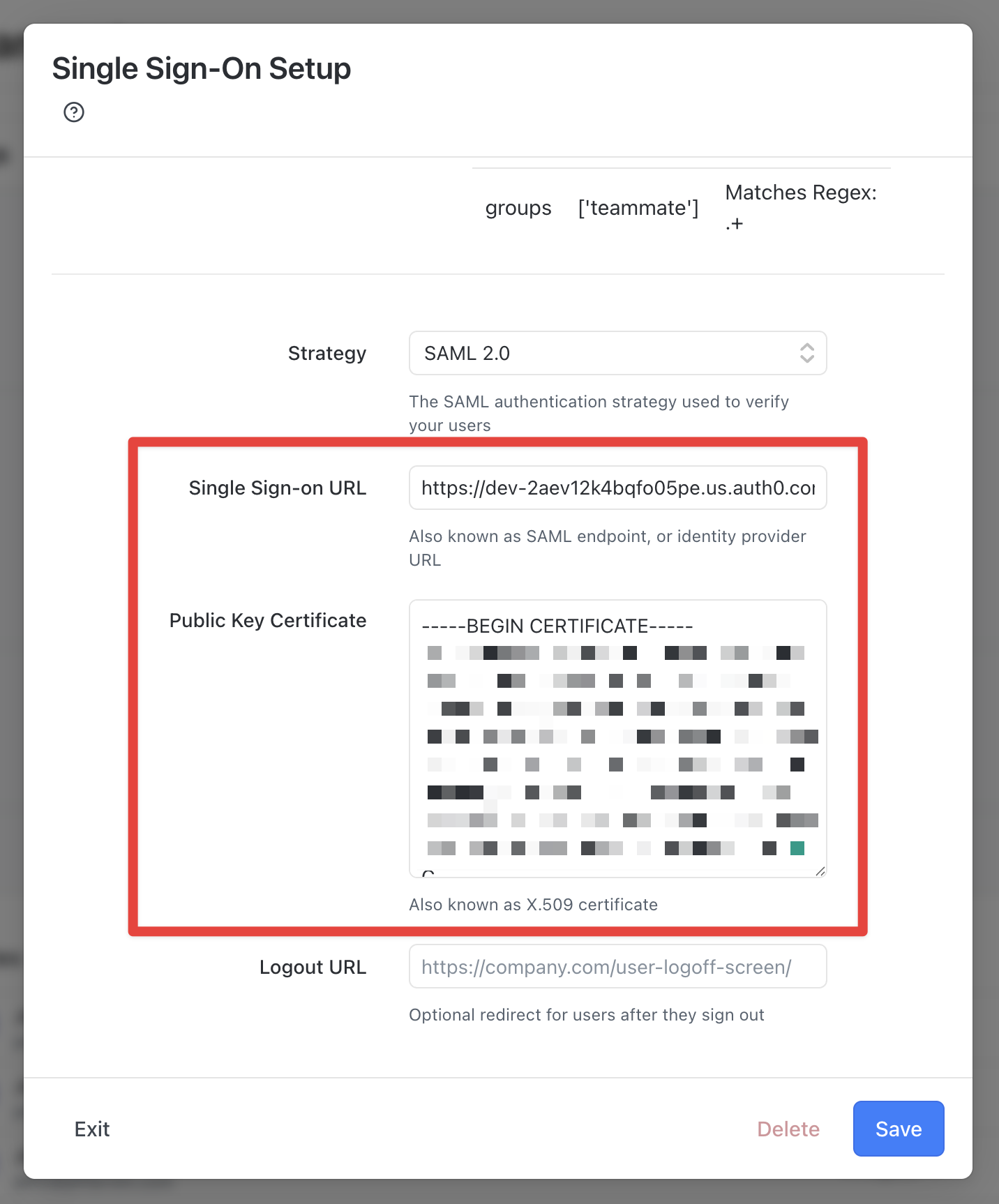
- Click Save.
- Click Exit to close the open modal.
- Click Save to confirm your SAML settings changes in ReadMe.
Attributes and Claims
Now match the attribute names ReadMe expects to the claims Auth0 sends.
-
In Auth0, return to the Settings tab in Auth0's SAML2 Web App config modal.
-
At a minimum, you need to send us
email,name, andusernameto sign a teammate into ReadMe. Provide this data as amappingsobject in Settings.
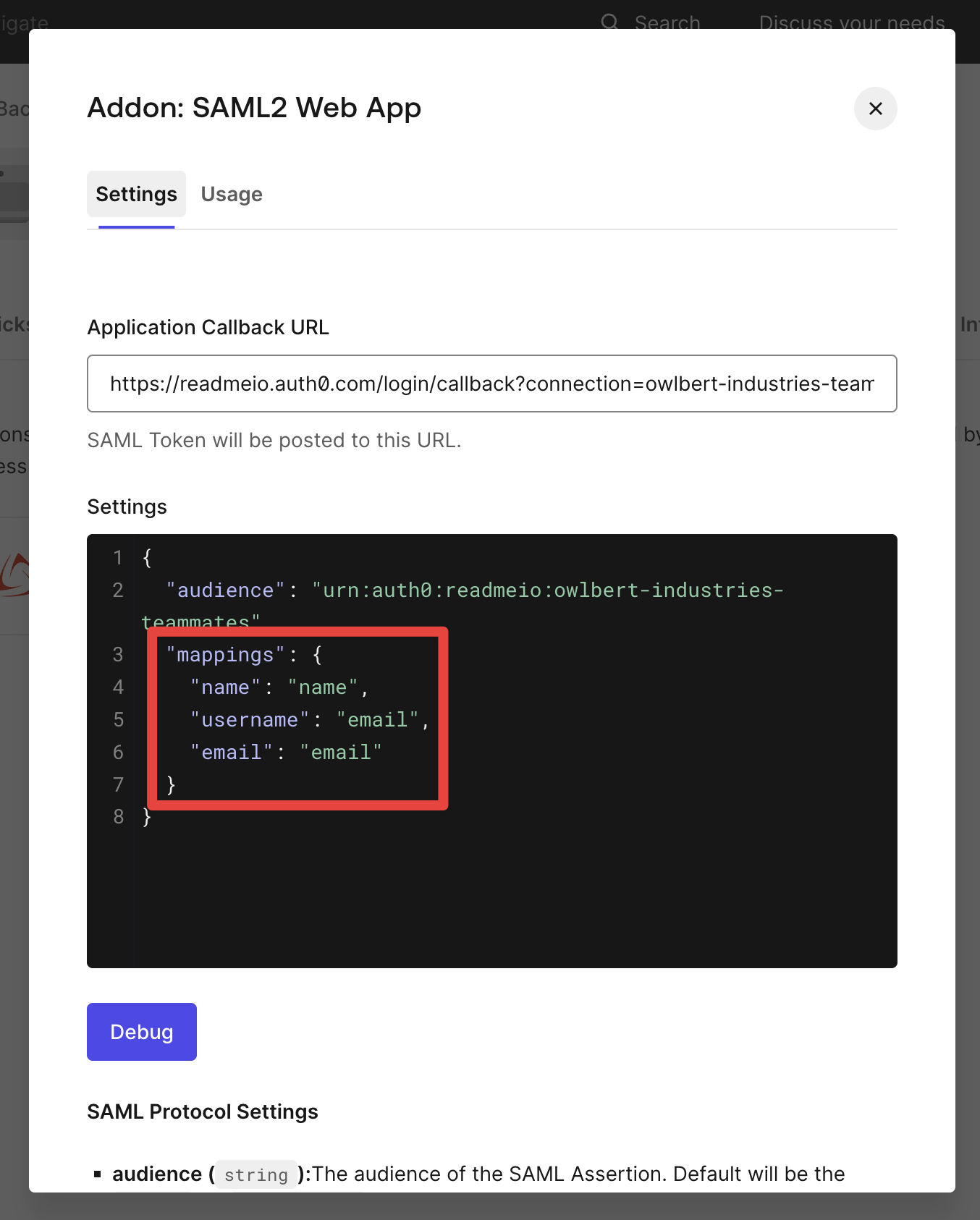
- Click Save.
Add Users via Roles
Finally, assign the teammates who should have access to ReadMe.
-
In the Auth0 dashboard, go to User Management > Roles.
-
Click Create Role.
-
Give the new role a name (e.g., ReadMe Teammates), provide a description, and click Create.
-
Select the Users tab.
-
Click Add Users.
-
Select the users you want to give access to, then click Assign.
Your teammates can now access the Auth0 app and log in to ReadMe!
Updated 2 months ago