

Build Your Projects
Configure and customize your individual projects within ReadMe
A project is an individual developer hub. It is your documentation site for a specific product, API, or team. Projects live inside your Group and inherit certain settings from it, while still allowing for their own configuration and content.
This page walks through how to create and manage projects, navigate the project dashboard, and configure project-level settings.
Project Management
Enterprise users can access all projects from the Group dashboard. From here, Group Admins can add new projects, remove existing ones, and organize how they appear across your Group.
Each project in your Group operates as its own hub with its own content, versioning, and URL path. While the Group sets shared defaults like global CSS, each project can be managed independently.
A few things to keep in mind:
- New projects must be added and upgraded to Enterprise by a Group Admin.
- Projects appear as subpaths under your Group's custom domain (e.g.
<YOUR_GROUP>.com/project-name). - Project access can be managed from the Group dashboard.
Project Dashboard and Navigation
Each project has its own Project Dashboard that is separate from the Group dashboard. You manage that specific project's content, settings, and team access from the project dashboard.
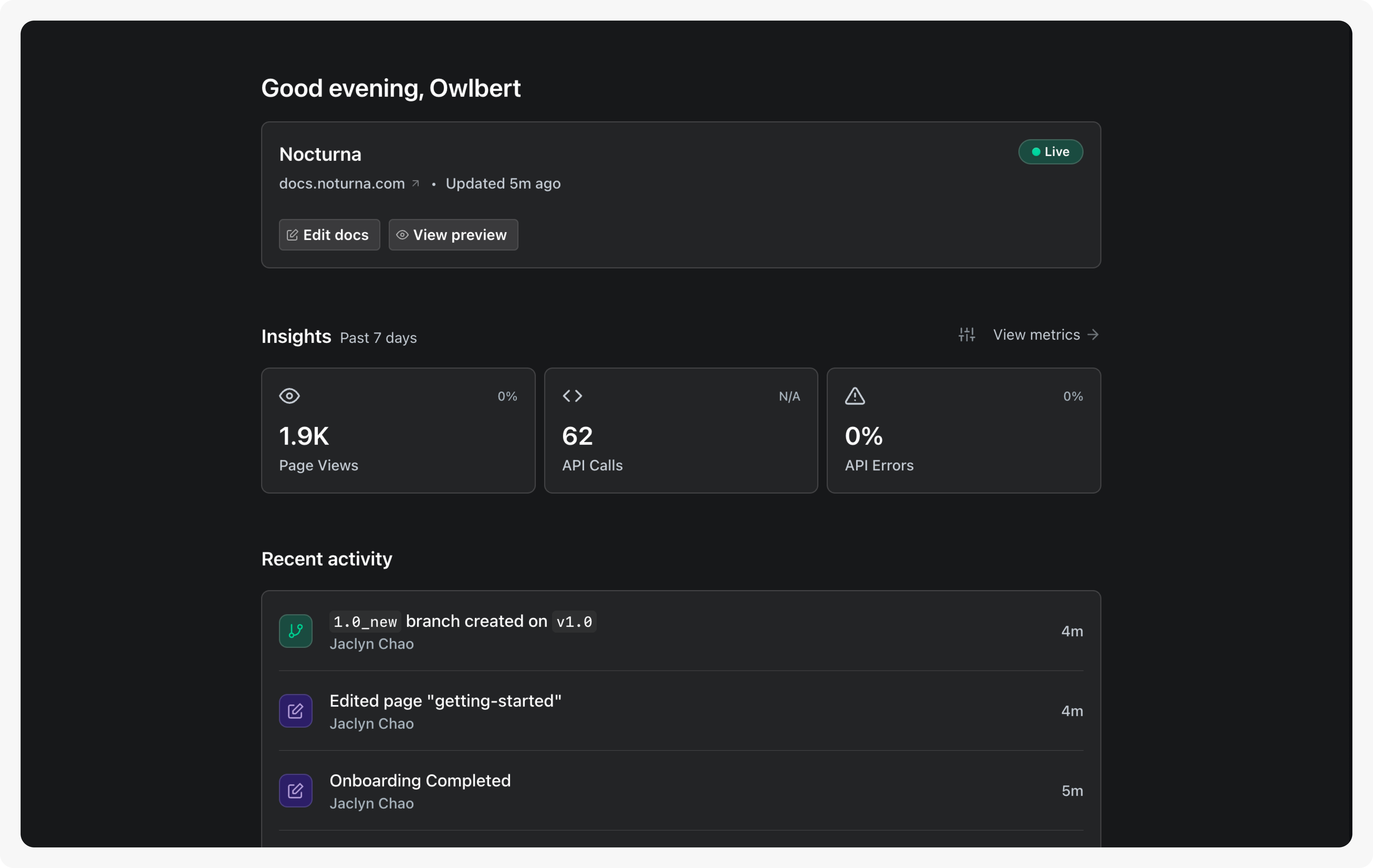
To access a project dashboard, navigate to your Group dashboard and select the project you want to manage.
Several categories of actions are available from the Project Dashboard, including:
- Dashboard - Access high-level information about the project, such as documentation metrics and audit tools
- Project Settings - Manage general settings, error pages, integrations, and more
- Versioned Content - Define and organize the core building blocks of your documentation, such as API definitions and reusable content
- Appearance - Control the look and feel of your project, including themes, navigation, and custom CSS
- User Management - Configure end user access and personalization
- Admin - Invite editors, set project-level roles, generate API keys, and access plan details
Project Admins have access to most project-level settings, with certain exceptions such as plan upgrades and ownership transfers.
Key Project Configurations
Each project can be configured independently to suit the needs of that product or team. Project-level settings take precedence over Group-level settings in most cases, giving you control over how individual projects look and behave.
Appearance
Projects inherit global CSS and design settings from your Group by default. You can override these at the project level by adding project-specific CSS or adjusting theme settings within the project dashboard.
If both Group-level and project-level CSS are configured, both sets of declarations are applied. Where there are conflicts, project-level styles take precedence.
Learn how group and project design settings work, and when to use each.
Versioning
Each project supports multiple versions of documentation, allowing you to maintain separate content for different releases. Versions are managed from the project dashboard and can be published, hidden, or set as the default version shown to readers.
See Versioning for more detail.
Access and Authentication
Project-level access can be configured independently of other projects in a Group. You can restrict a project to specific users, require authentication, or keep it publicly accessible regardless of how other projects in your Group are configured.
For authentication setup, see Authentication & Access.
OpenAPI Support
ReadMe supports importing OpenAPI definitions to automatically generate API reference documentation. Uploaded definitions are rendered as interactive API references, complete with working code examples and the ability to make authenticated requests directly within the docs.
Each project manages its API definitions independently, so different projects can reference different APIs or versions of the same API.
See OpenAPI Support for more detail.
User Experience
Projects give you control over key touch-points in your readers' experience. You can configure custom error pages to handle broken or unauthorized routes, set up a custom login page for authenticated projects, and define redirects to manage moved or deprecated content.
Additional Project Resources
Projects play a large part in defining your users' documentation experience. This page only scratches the surface. To dive in further, visit the ReadMe Project documentation.
Updated 3 months ago