

Group Settings
Manage the settings that apply across your entire Enterprise Group
Group Settings control configuration at the highest level of your Enterprise account. Settings you define here apply to every project within the group.
General Settings
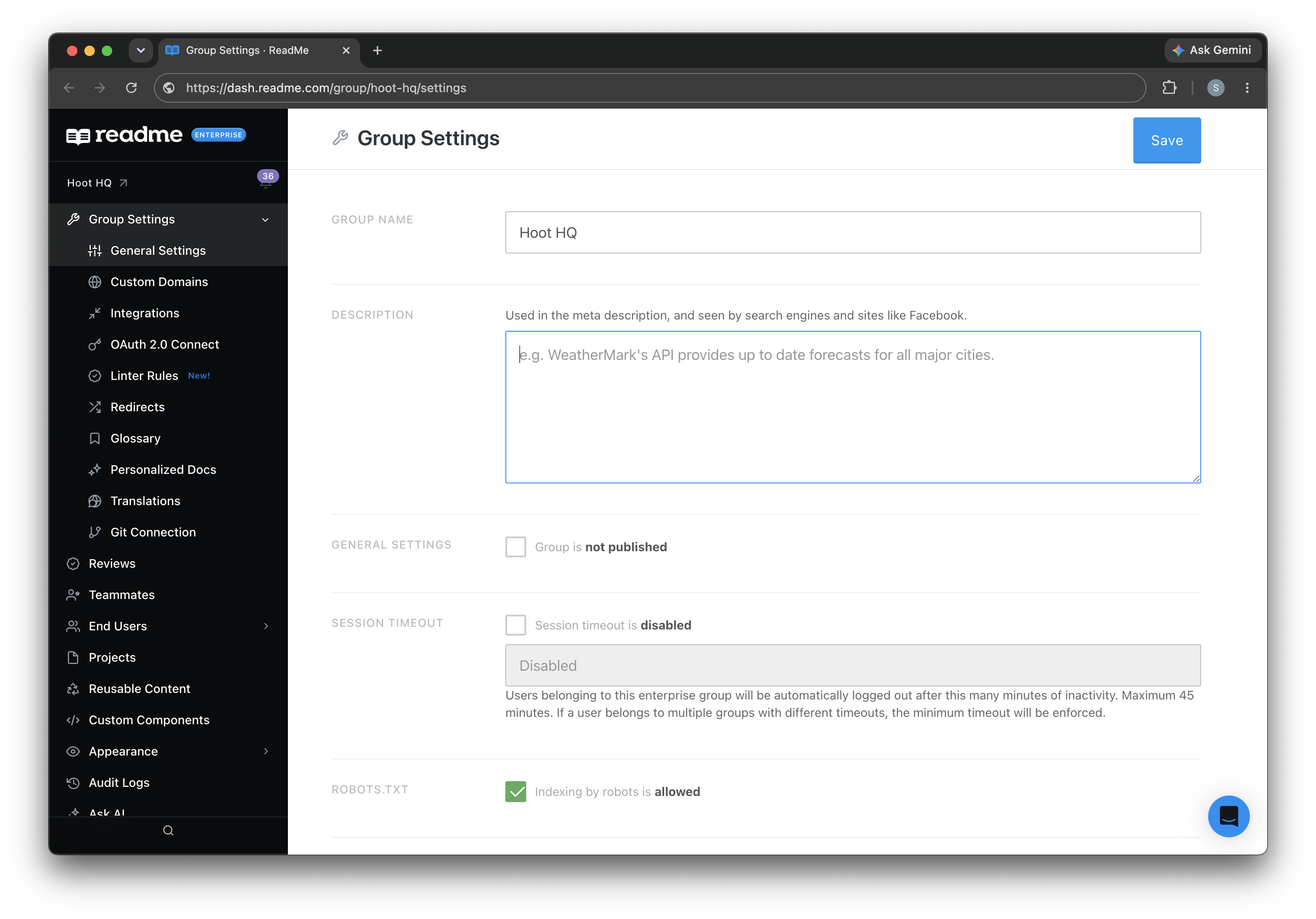
From the General Settings page, you can:
- Publish the Group.
- Change the Group name.
- Change the Group description for SEO and AEO.
- Add or remove projects from the Group. See Manage Projects.
Redirects
You can set redirects at the Enterprise Group level to manage traffic across all projects.
See Redirects to learn more on how to set up redirection between links.
Personalization
End-user personalization lets you dynamically populate documentation with content unique to each reader, such as their name, email, account details, or any custom data your server provides.
This works through two complementary features: custom variables and ReadMe Webhooks. Custom variables let you render user-specific values inline in your docs. When ReadMe doesn't have that information on hand, it can fire a webhook to your server to fetch it on demand.
Group-level personalization lets you define custom variables once and use them across all projects in your group. To set it up, go to Group Settings > Personalized Docs. The workflow mirrors project-level personalization — the main difference is group-level personalization has a wider scope.
See Personalization to learn more about personalizing your end-user experience.
Glossary
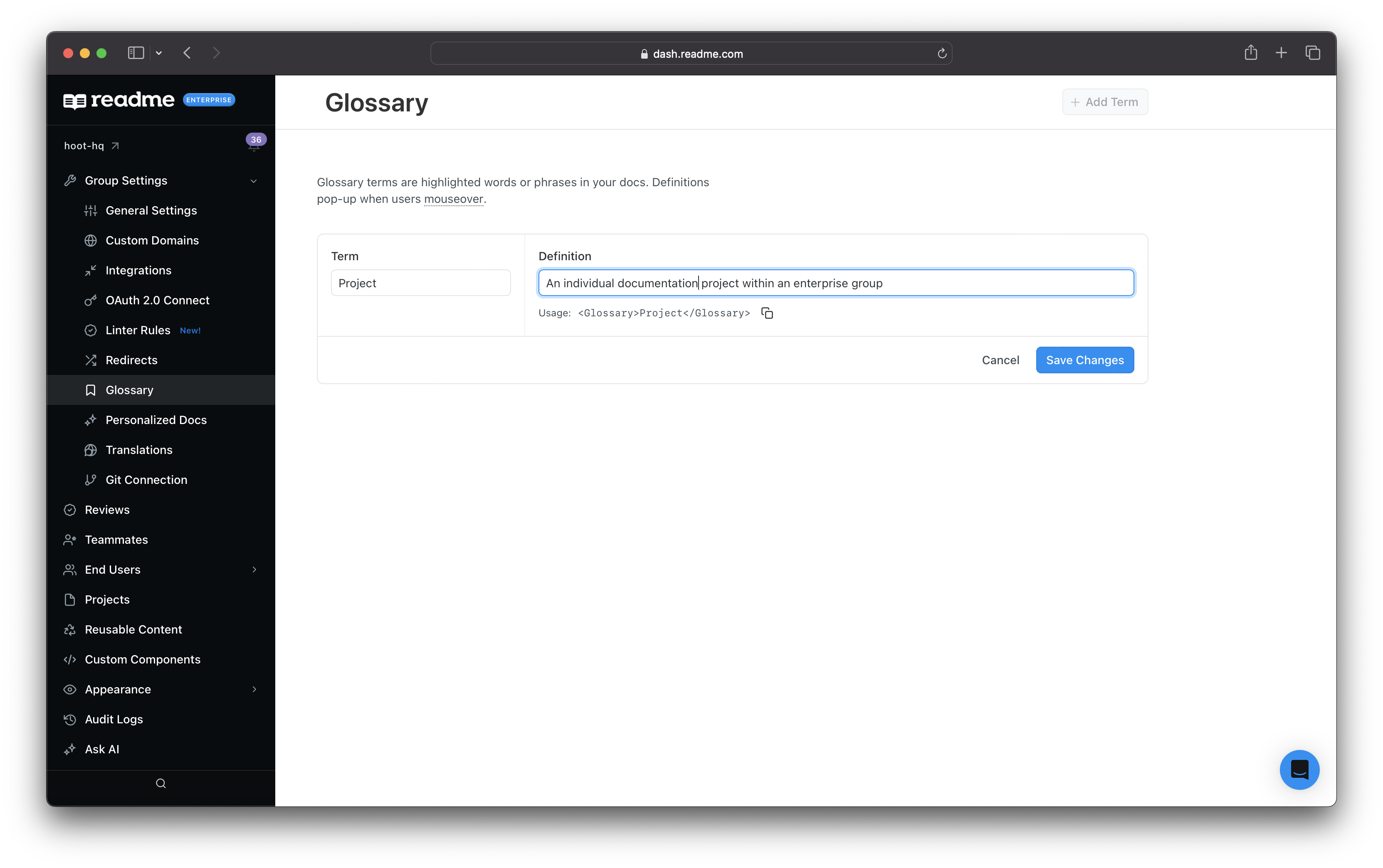
Glossary terms are highlighted words or phrases in your docs. Definitions pop-up when users mouseover. To access the Glossary, go to Group Settings > Glossary.
To add a term:
- Click Add Term (or similar — adjust to match actual UI label).
- Select or type the term you want to define.
- Type the definition for that term.
- Save your changes.
Once a term is added, it's automatically highlighted wherever it appears across your docs. When a user hovers over the term, the definition you wrote pops up.
Linter
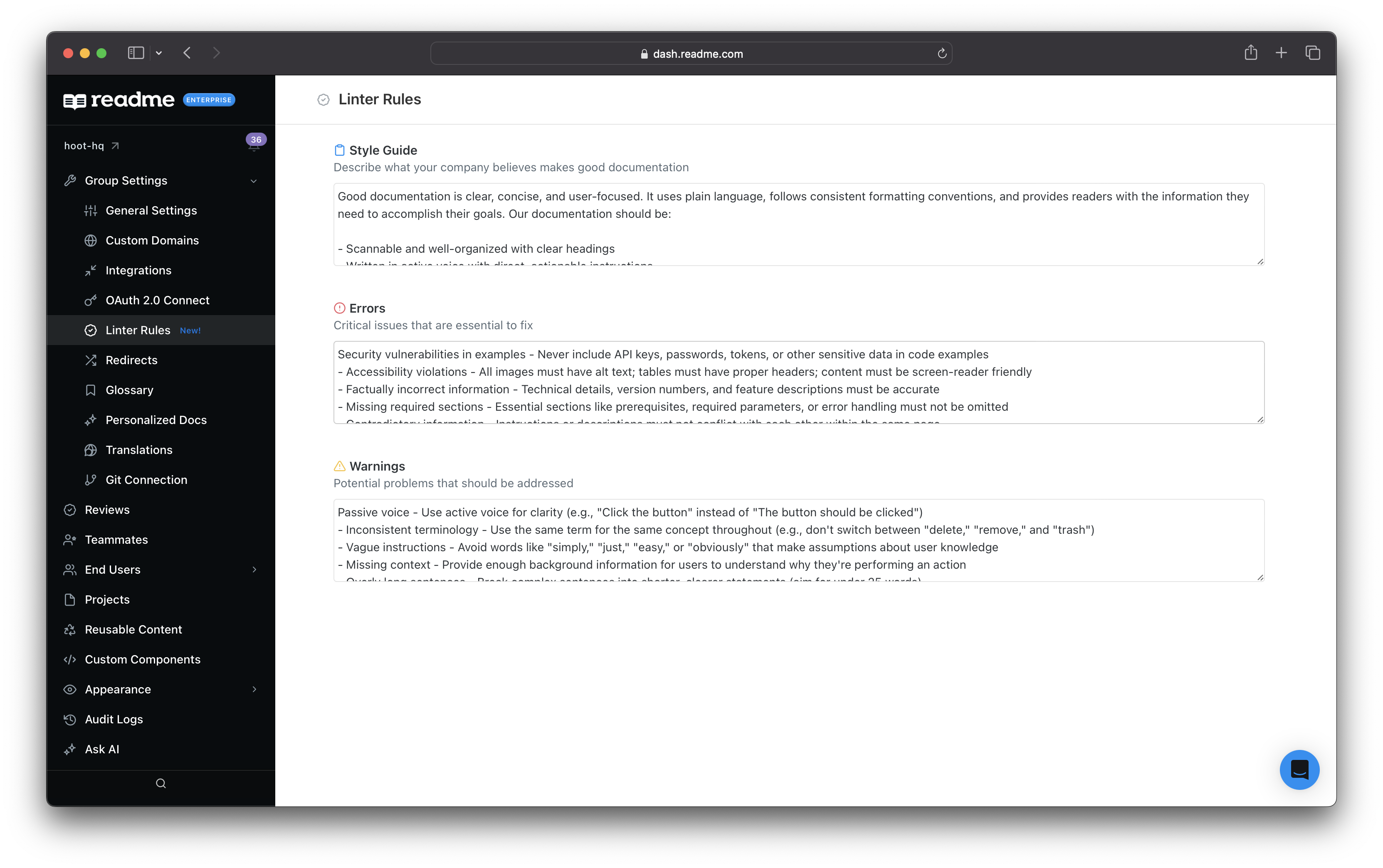
You can Lint your documentation from the group level. This means you can apply the linter across all of your documentation projects. You can define rules for:
- Style Guide - Describe what your company believes makes good documentation
- Errors - Critical issues that are essential to fix
- Warnings - Potential problems that should be addressed
See Linter for more information on documentation linting.
Custom Domain
You can set up a custom domain for your Enterprise Group. This domain is global and applies to all projects within your Enterprise Group. For example, you can set the custom domain for your Enterprise Group to docs.mycompany.com.
Set up custom domains from your Enterprise Group Dashboard, on the Group Settings > Custom Domains page.
Domain Settings
Integrations
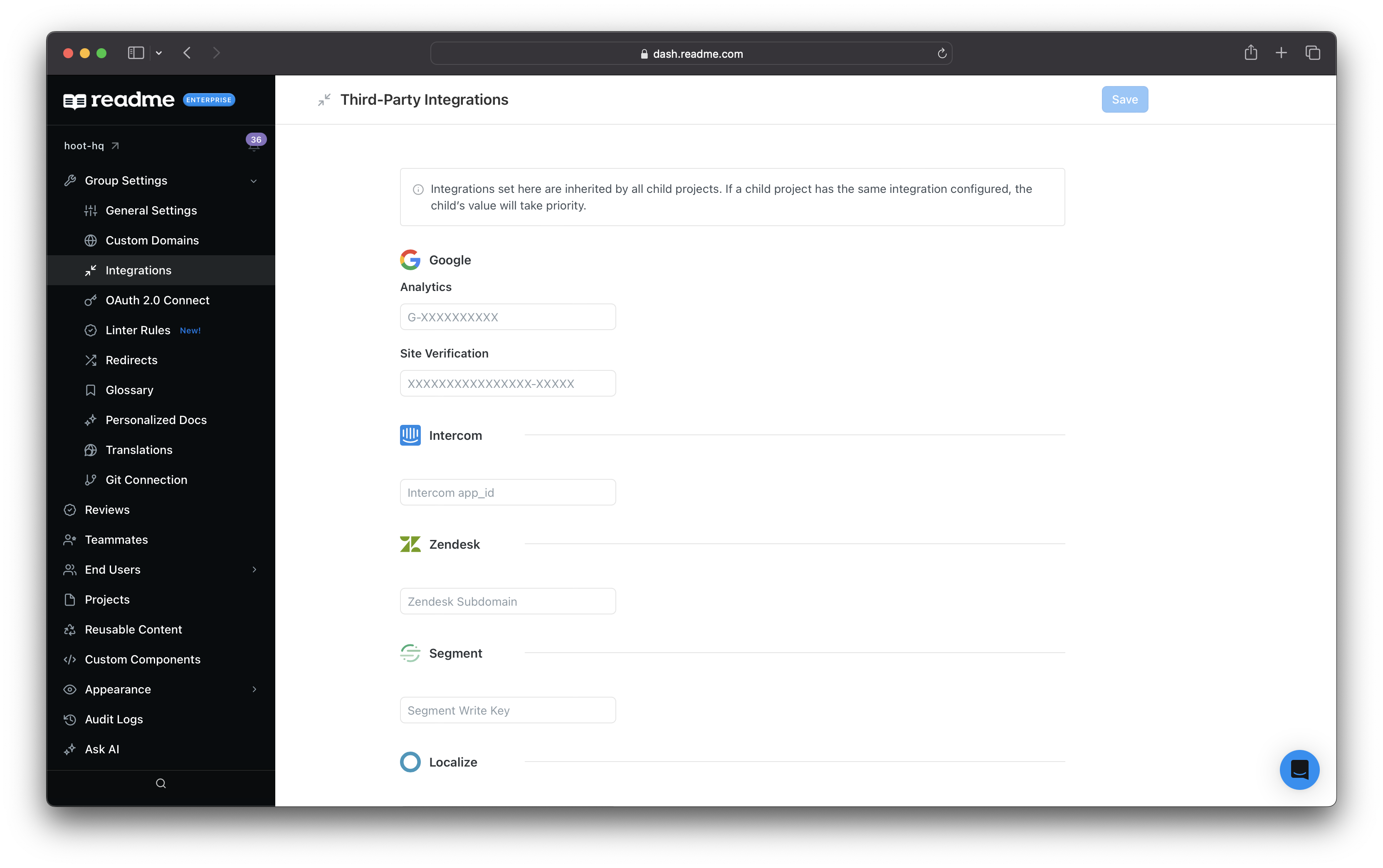
Integrations connect your docs to your other tools. For example, you can integrate ReadMe with Slack for notifications, or with Google Analytics for traffic insights for documentation traffic.
Configuring an integration at the group level makes it available across all projects, so you don't have to set it up per project. Manage group-level integrations from Group Settings > Integrations.
Read more about Integrations.
Updated 3 months ago