

Navigate Your Docs
Find your way around the redesigned admin interface and editor
You can access ReadMe project tools from the left sidebar when using the ReadMe platform. Features and content sections are quickly accessible through this sidebar, which is visible while you're editing.
Preview Mode and Editor Mode are the two modes available while managing your documentation within ReadMe.
Preview Mode
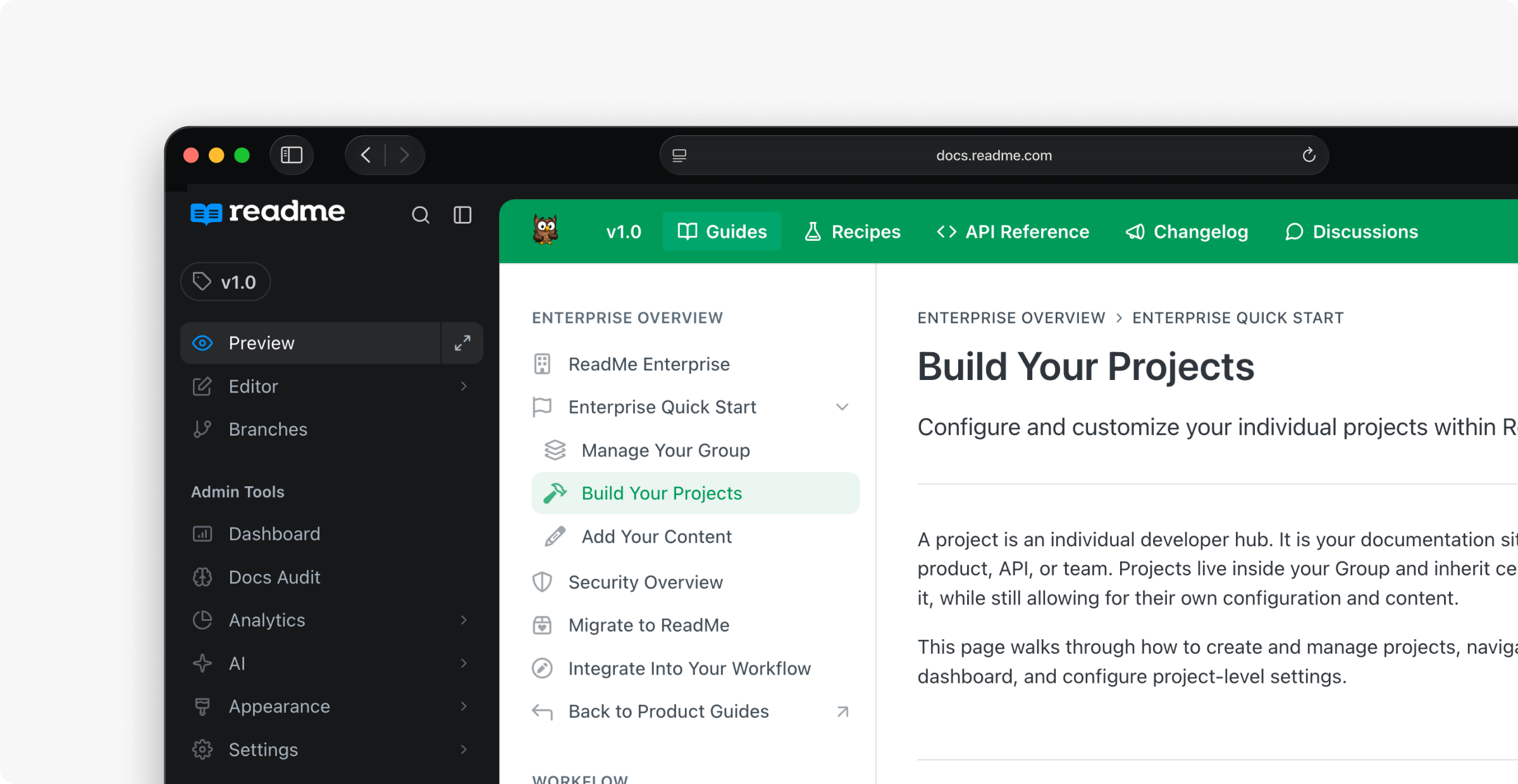
Preview renders your docs as they will appear to your readers. The sidebar remains for authors and displays quick links to your admin tools.
Access Preview Mode
Use Preview to review content before publishing, so you can understand your users' documentation experience. Click the Preview button in the upper right-side of the editor to remove the left nav entirely and render the end user experience.
Admin Tools
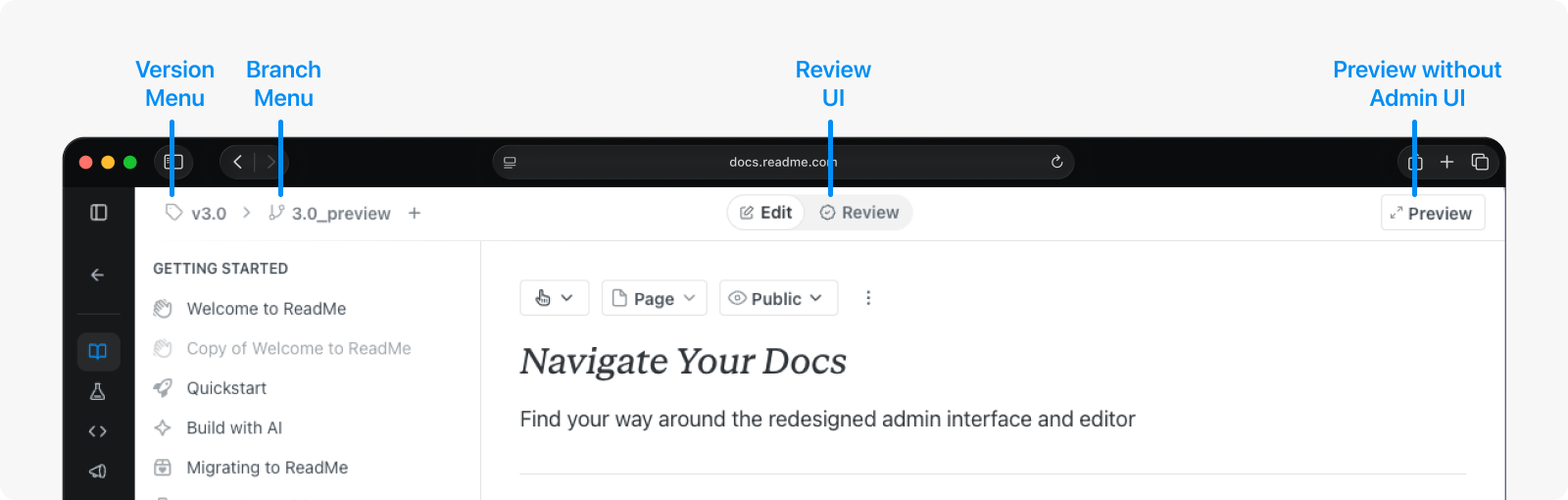
Access Admin Tools from the sidebar while in Preview mode. Admin tools include:
- Dashboard — Your project overview, serving as a landing that displays insights and recent project activity.
- Docs Audit — Run your style guide rules against every page in your docs to catch inconsistencies and enforce standards across your documentation.
- Analytics — View data on how your docs are performing, including page views, search queries, and reader engagement.
- AI — Access settings for AI Readiness including LLMs.txt, AI Dropdown, Ask AI, Agent, AI Writer, Linter, and MCP.
- Appearance — Brand colors, logos, navigation layout, and theme customization.
- Project Settings — API authentication, custom domains, team access, and project-wide preferences.
- Ask AI — Access the Agent to help you write, review, and maintain your documentation.
Access Admin tools from the ReadMe toolbar that appears in Preview mode:

- AI — Access the Agent to help you write, review, and maintain your documentation.
- Return to Editing — Exit Preview Mode and return to the Editor Mode.
- Review Branches — Review changes made on branches.
Editor Mode
Editor Mode is your authoring workspace where you can write, structure, and format your content. The editor supports MDX, and the sidebar provides quick access to all of your editing tools.
Switch to Preview anytime to review your changes as readers will see them.
Multiplayer Editing
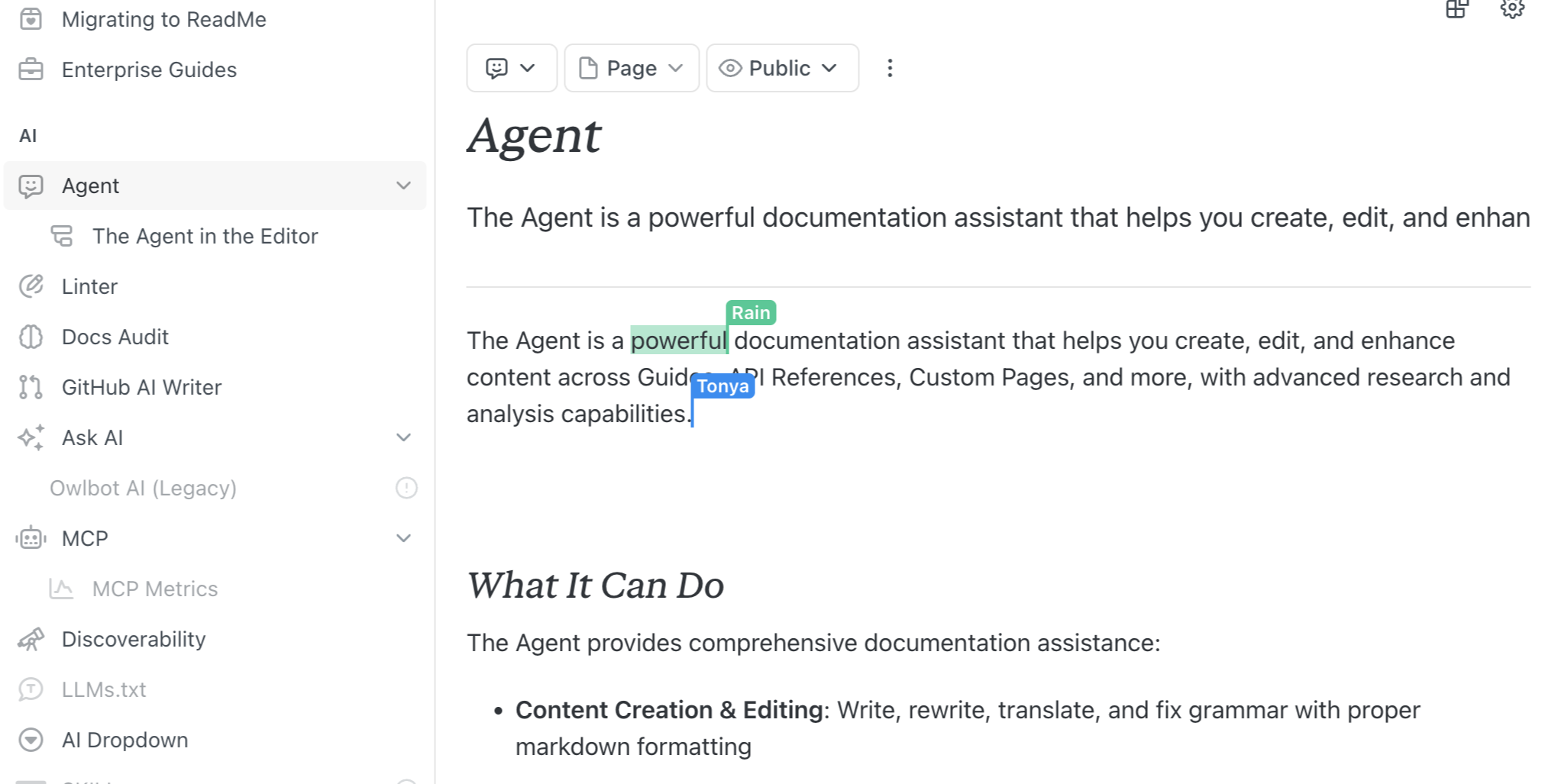
Collaborate on content with your teammates at the same time. Edits appear as they’re typed, and undos are shared within the document. Everyone editing gets a colored cursor with their name on it.
Multiplayer editing is available for Pro, Business, and Enterprise projects for Guides, API Reference page Markdown, Changelogs, and Custom Pages written in Markdown. New pages become collaborative after its first save.
Opening Raw Mode locks the page for everyone else, since raw Markdown edits can’t be merged with rich-text edits. The lock releases when you exit Raw Mode, or on its own if you close the tab.
Enterprise projects will see attribution for all authors and their respective changes in audit logs, as well as time spent in an editing session.
Access Editor Mode
Click Editor on the sidebar of any page while in Preview to start editing. Users with the Editor and Admin roles can edit a page at the same time, if there’s a conflict a warning will appear at save.
Sections
Sections are the primary way to organize your documentation. The following sections are available in the left nav while in Editor mode:
- Guides — Step-by-step documentation and tutorials for your users.
- Recipes — Short, task-focused examples that show how to accomplish specific goals.
- API Reference — Auto-generated or manually authored reference docs for your API endpoints.
- Changelog — A running log of updates, releases, and changes to your product.
- Custom Pages — Freeform pages for content that doesn't fit into other sections.
- Run AI Linter — Run your docs through a linter customized with your style guide.
Reusable Content
Reusable Content lets you define shared elements once and use them across your docs. The following are available in the left nav while in Editor mode:
- Custom Components — Build and reuse custom MDX components across your documentation.
- Reusable Content — Define blocks of content that can be embedded in multiple pages.
- Glossary — Maintain a list of terms and definitions that can be referenced throughout your docs.
Versions and Branches
The version and branch picker lives in the top-left of the editor. You can switch branches at any time. Changes are saved to your current branch by clicking the save button located in the lower right of the editor.
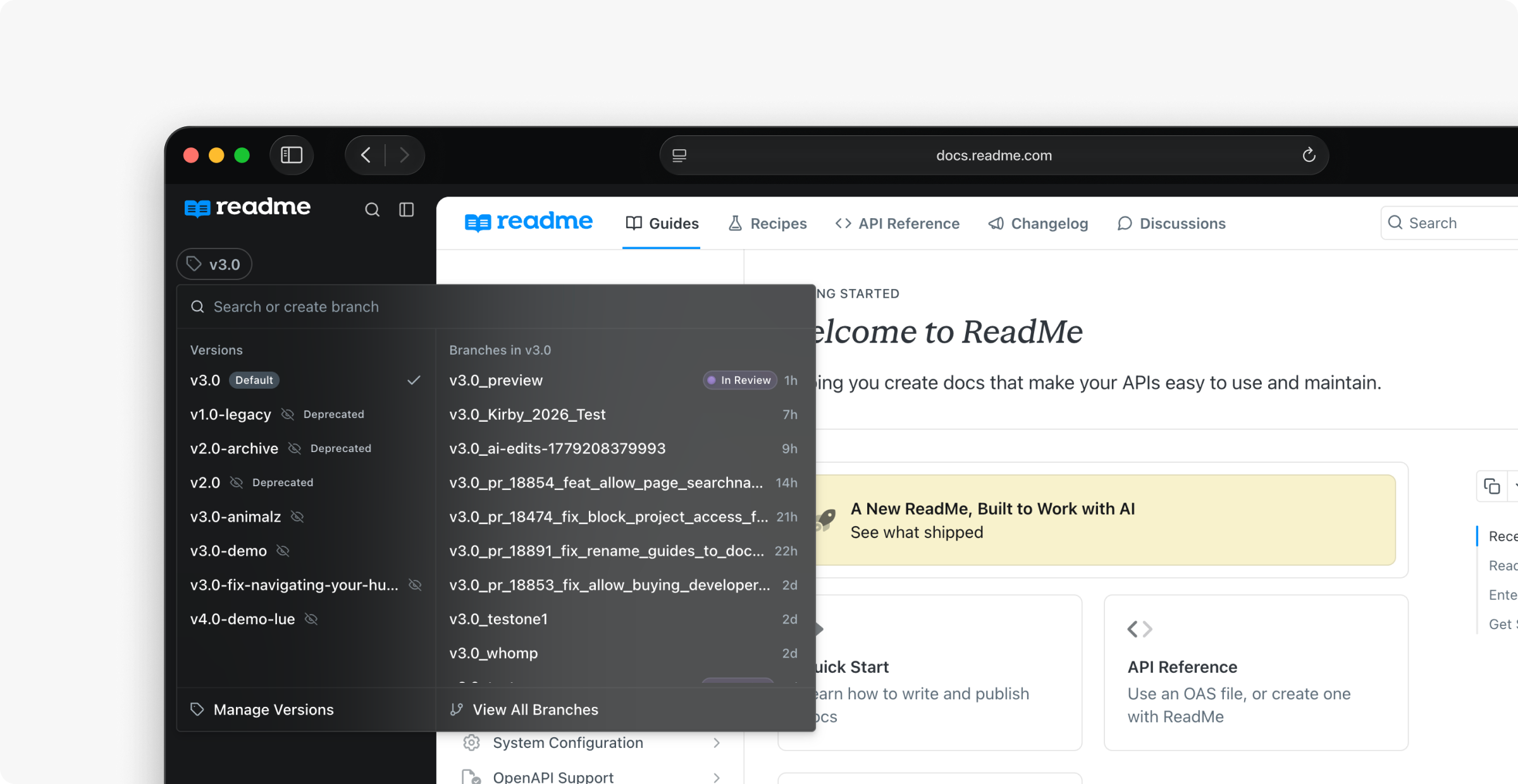
Branches are isolated from each other, so edits on one branch won't appear on another until merged. This makes it safe to draft rewrites or experiment with structure without affecting your live docs.
There are several ways to create a branch:
- Open the versions and branches menu (e.g.
v2.1.0) and create a new branch. - While editing a page, click Save to Branch instead of Save.
- With GitHub Sync enabled, new branches created in your repository appear in ReadMe automatically.
Ask AI
Ask AI is located at the bottom of the left nav. Clicking the text box will expand the AI chat and enable prompting.
Edit with AI
Highlight any text in the editor and use AI to preview and apply changes without leaving the page. See Inline AI for more.
Keyboard Shortcuts
Keyboard shortcuts allow you to navigate ReadMe more quickly. Rather than clicking through menus, shortcuts give you direct access to the most common views and tools from anywhere in the platform.
| Shortcut | Action |
|---|---|
| Ctrl+1 | Switch to View Mode |
| Ctrl+2 | Switch to Edit Mode |
| Ctrl+, | Open Settings |
| Ctrl+\ | Toggle AI panel |
| Ctrl+b | Open Versions & Branches panel |
| Ctrl+m | Open My Developers |
| Ctrl+/ | Toggle Sidebar |
| Ctrl+J | Open the admin navigation menu |
Ctrl+J also searches the pages in your project: guides, API Reference, recipes, changelog, and custom pages.
Jumping to a Section
These shortcuts move you between the sections of your project.
| Shortcut | Section |
|---|---|
| alt+1 | Guides |
| alt+2 | Recipes |
| alt+3 | API Reference |
| alt+4 | Changelog |
| alt+5 | Custom Pages |
Updated 24 days ago