

Reviews
Reviews allow you to check your changes for issues with the AI Linter or get approval from a teammate.
Reviews are an optional, but highly recommended, feature to help maintain quality in your docs. Teams use reviews to:
Reviews work with Branches. Create a branch to make changes, then use a review to check and approve those changes before merging.
- Self-review their content for issues.
- Run changes against their team’s style guide using the AI Linter.
- Get their content reviewed by another teammate.
| Starter | Pro | Enterprise |
|---|---|---|
Review Settings
Projects on Enterprise plans can enforce review requirements and merge access restrictions. Only the Group Admin role can access and modify these settings.
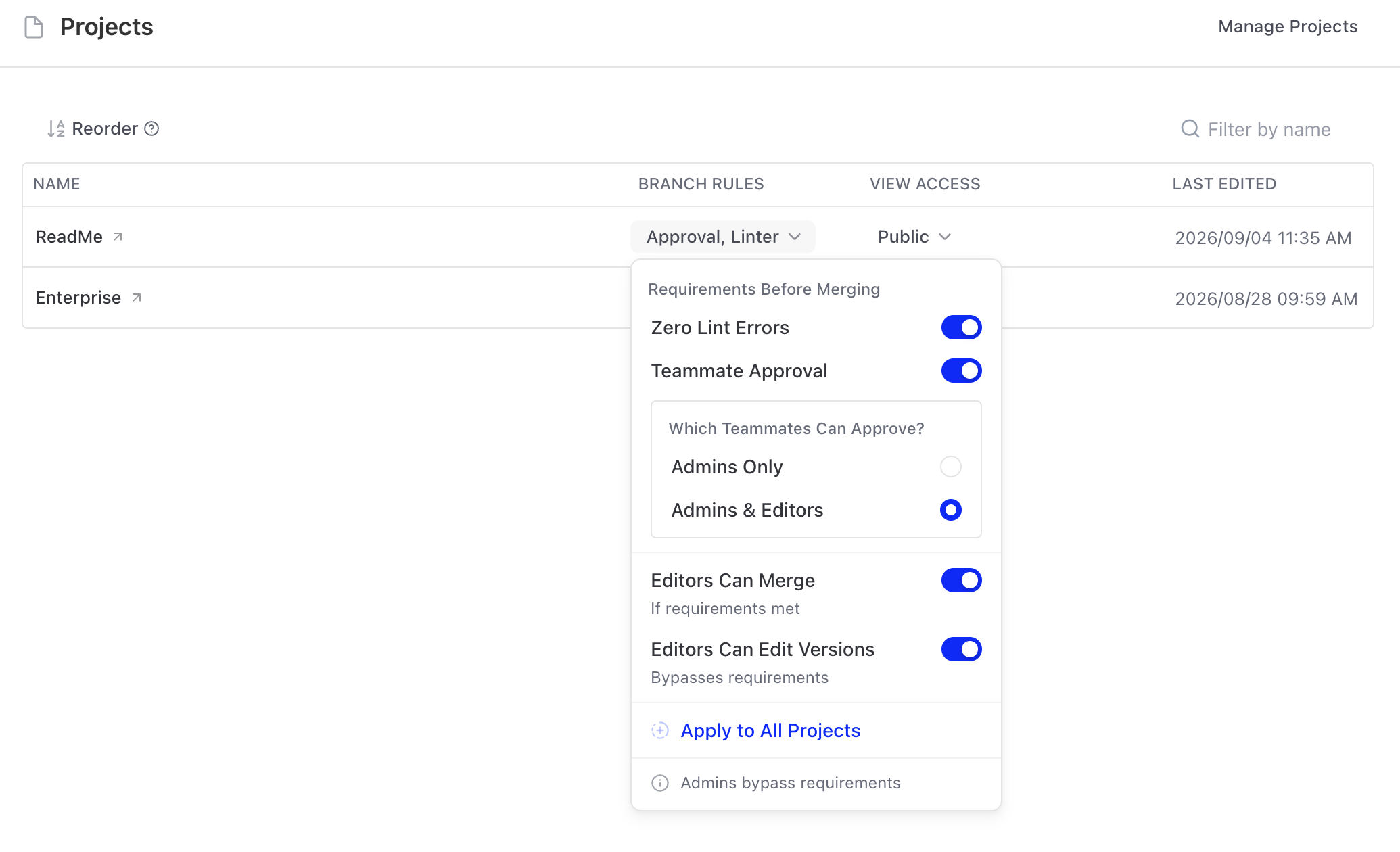
Review Requirements
These settings help your organization maintain quality and review protocols before allowing teammates to merge changes. Changes can be applied per-project, or across the entire Enterprise group.
- Zero Lint Errors: When enabled, prevents users from merging changes if there are lint errors on the branch.
- Teammate Approval: When enabled, prevents users from merging changes until another teammate has approved the changes. You can also decide whether an admin, or admin or editor can approve a review.
Merge Access
Separately from a review, you also have the option to restrict merging to admins even if review requirements are met (or there are no requirements). Admins can also bypass requirements at any time using the Skip Requirements & Merge button, regardless of the review settings configured.
Version Edit Access
You can also control whether editors can edit content directly on a published version, independent of merge access. For example, you can allow editors to merge approved branches while restricting direct version edits to admins only. Both settings can be found on the Enterprise Dashboard's Project Page.
Start a Review
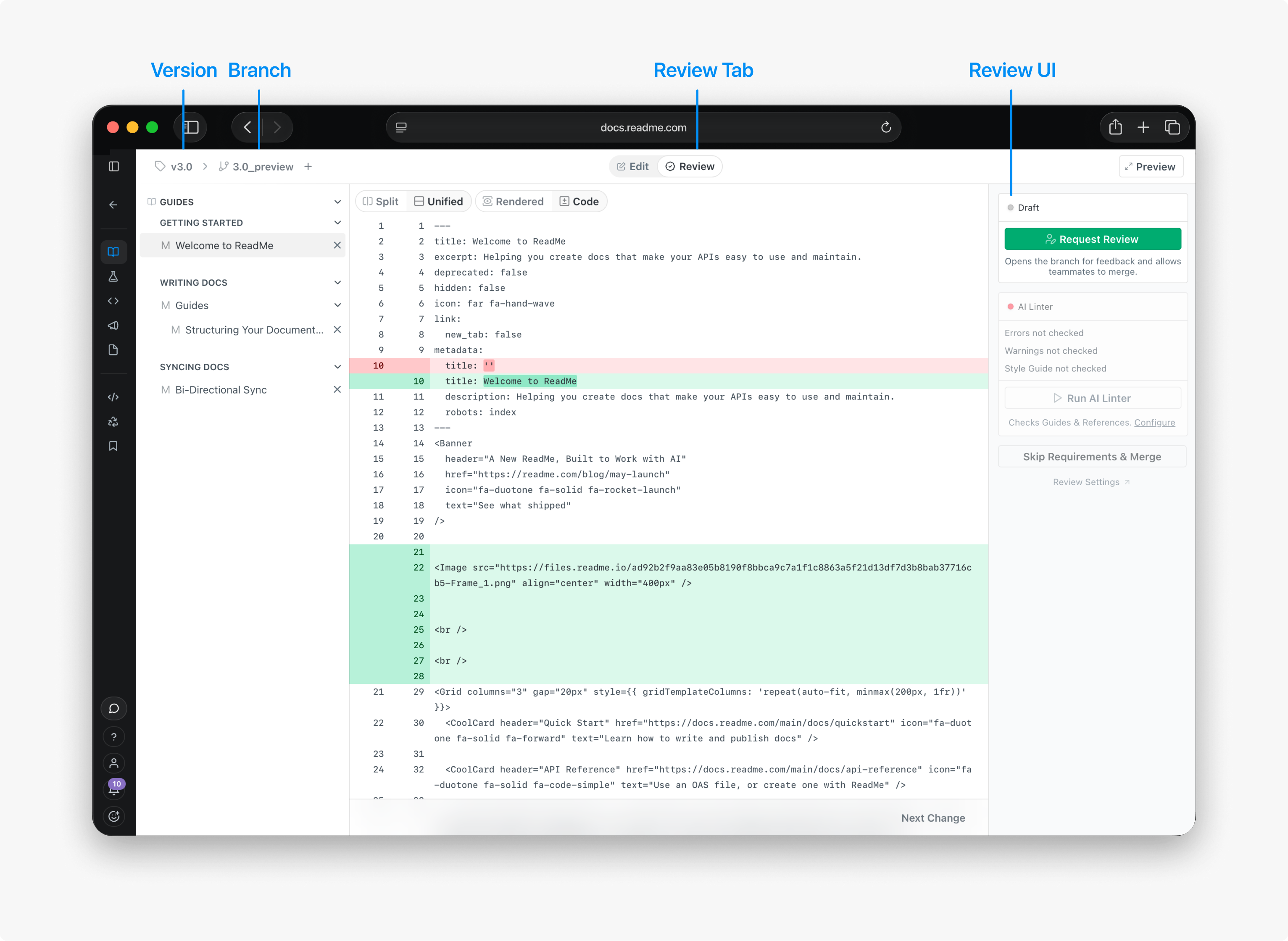
To start a review, navigate to the Review tab in the top-center of the ReadMe UI. Once there, you can request a review from the Review UI. Then you can share the URL of the review with a teammate for their approval.
If your team uses the AI Linter, it will automatically begin checking your changes for errors, warnings, and against your team’s style guide.
Review Changes
When reviewing a change, you’ll be able to see all the files changed, the diff of what’s changed in each file, the Linter results, and the option to approve changes. You should use the information provided when deciding whether to approve the changes. Depending on your organization’s settings, you or an admin will be able to merge the changes after doing so.
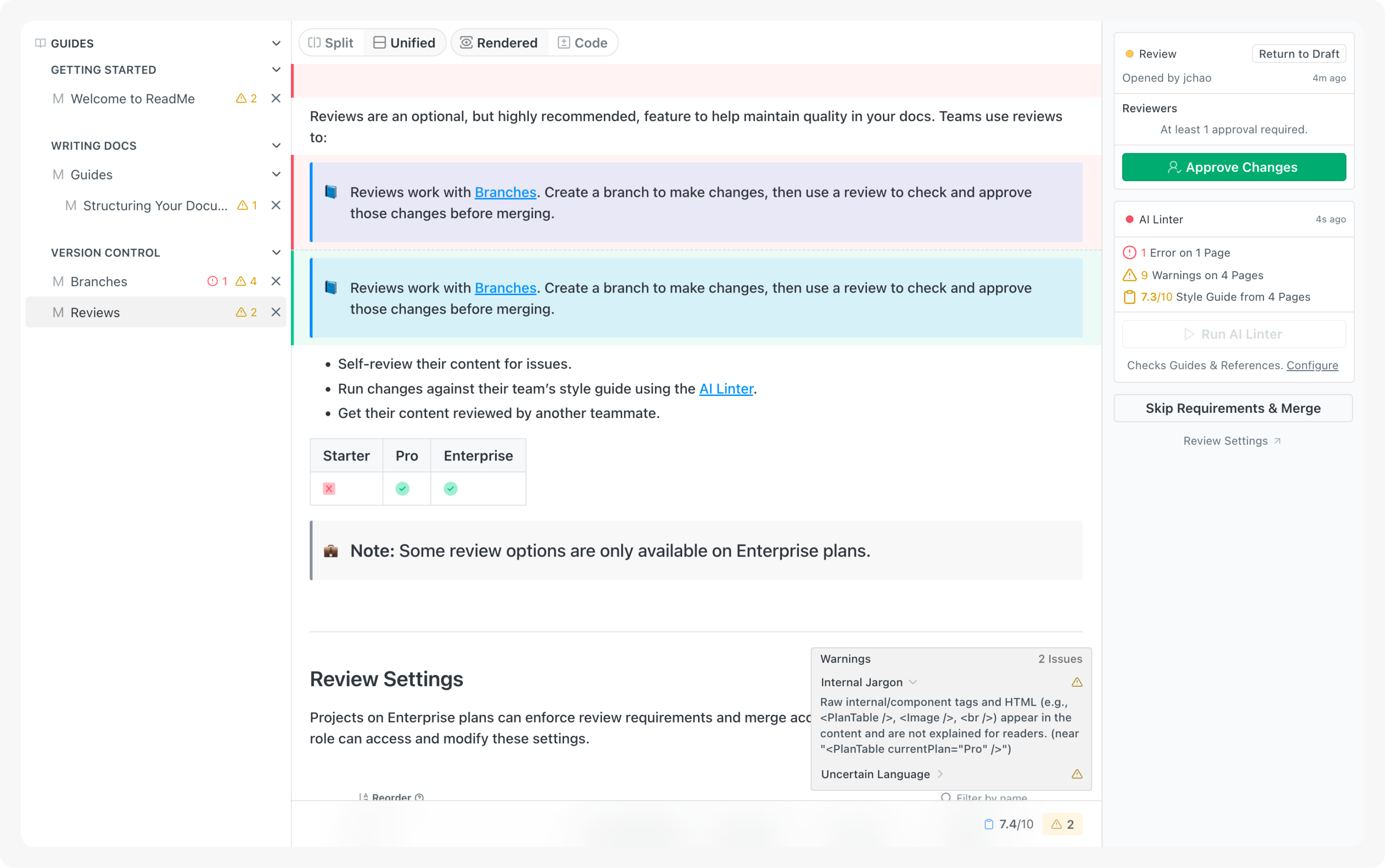
When the order of files have changed, they’re represented as changes to the_orderfile in your docs. Each item in the file represents a page in your docs and matches the slug of each page
Merge Changes
Once you’re ready for the changes to go live, you can merge from the Review UI, or the branch menu. ReadMe will check to ensure there are no merge conflicts. If there are conflicts that must be resolved, we recommend resolving the conflicts from GitHub. If your project does not sync with GitHub, you can choose to ignore the conflict and forcefully merge their changes—with preference to the changes in the branch.
Updated last month