

AI Dropdown
Links to ChatGPT, Claude, and Markdown export on every guide page.
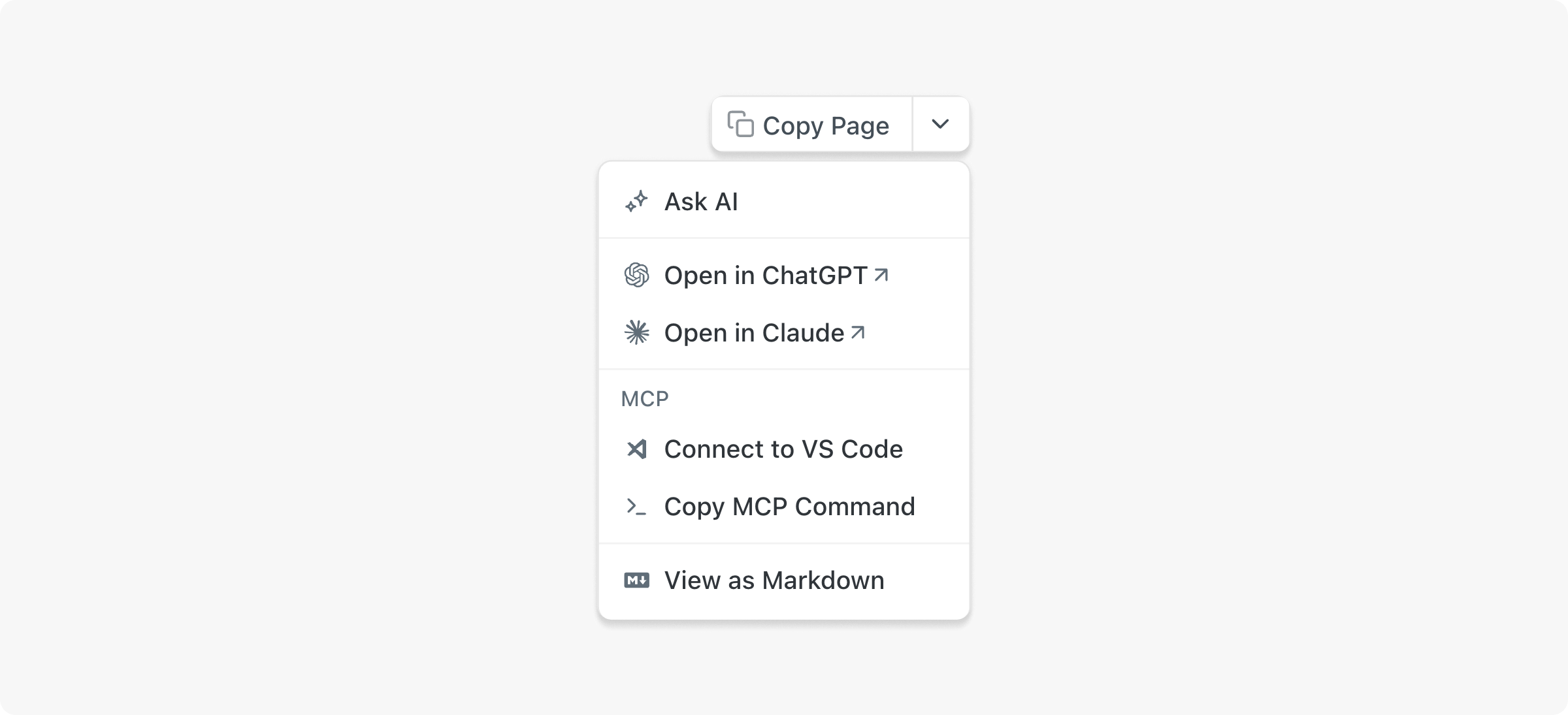
The AI Dropdown adds a menu icon to every guide page that lets readers send the full page content to ChatGPT or Claude in one click, opening a new tab with the page pre-loaded for follow-up questions or code generation. Copy Markdown and View as Markdown export the page content for use in any AI tool or IDE. This is separate from Ask AI, which answers questions without leaving your docs.
Getting Started
- Open AI → AI Readiness and find the AI Dropdown section.
- Toggle Show AI Dropdown to ON.
- Select which tools to include.
- Click Save.
FAQ
What happens when a user clicks ChatGPT or Claude?
The full page content is sent to the selected AI tool in a new tab. The user leaves your documentation site.
Can I choose which tools appear?
Yes. Toggle individual tools on or off in the AI Dropdown settings.
Does it work on all page types?
The AI Dropdown appears on guide pages only. It does not appear on API Reference pages or custom pages.
What plan do I need?
The AI Dropdown is available on all plans.
Updated 3 months ago