

ReadMe MCP Plugin for Cursor
Add ReadMe to Cursor and search your guides, inspect OpenAPI specs, and manage documentation updates from your IDE.
Access your documentation, API specs, and documentation tools directly from Cursor.
The ReadMe MCP plugin connects Cursor to your ReadMe hub using the Model Context Protocol, an open standard for AI agents to access external tools and data. Once installed, you can search your guides and API Reference, inspect OpenAPI specifications, draft changelog entries, and open documentation updates for review—all without leaving your editor.
What the ReadMe plugin does
The ReadMe MCP plugin gives you:
- Search your guides and API Reference. Find documentation pages and endpoints by keyword or natural language query. Get results from your entire hub instantly.
- Inspect your OpenAPI specification. View endpoint details, parameters, authentication methods, and request/response schemas inline while you code.
- Draft changelog entries. Create new changelog entries with formatted content and preview them before publishing to your hub.
- Configure project settings and appearance. Change your project settings, including color themes, logos, and more.
- Create, maintain, and set up docs with ReadMe skills. The plugin installs the ReadMe skills, which let Cursor's agent start a new project, write pages in ReadMe's MDX, reorganize navigation, and update project settings.
The plugin provides read-only access by default (no authentication required for public hubs). Write operations like drafting changelogs and pushing updates require a ReadMe API key.
Install the ReadMe plugin
- Open Customize in Cursor's sidebar.
- Search for ReadMe.
- Select Add on the ReadMe plugin by ReadMe.
- Enter your ReadMe API key when prompted. You can leave it blank for read-only access, or if you're about to create a new project with the agent, and add it later.
You can also run /add-plugin readme in the chat. A plugin installed at user scope works across the Cursor IDE, Cursor web, and the Cursor CLI. Reload the window or start a new chat if the plugin doesn't appear straight away.
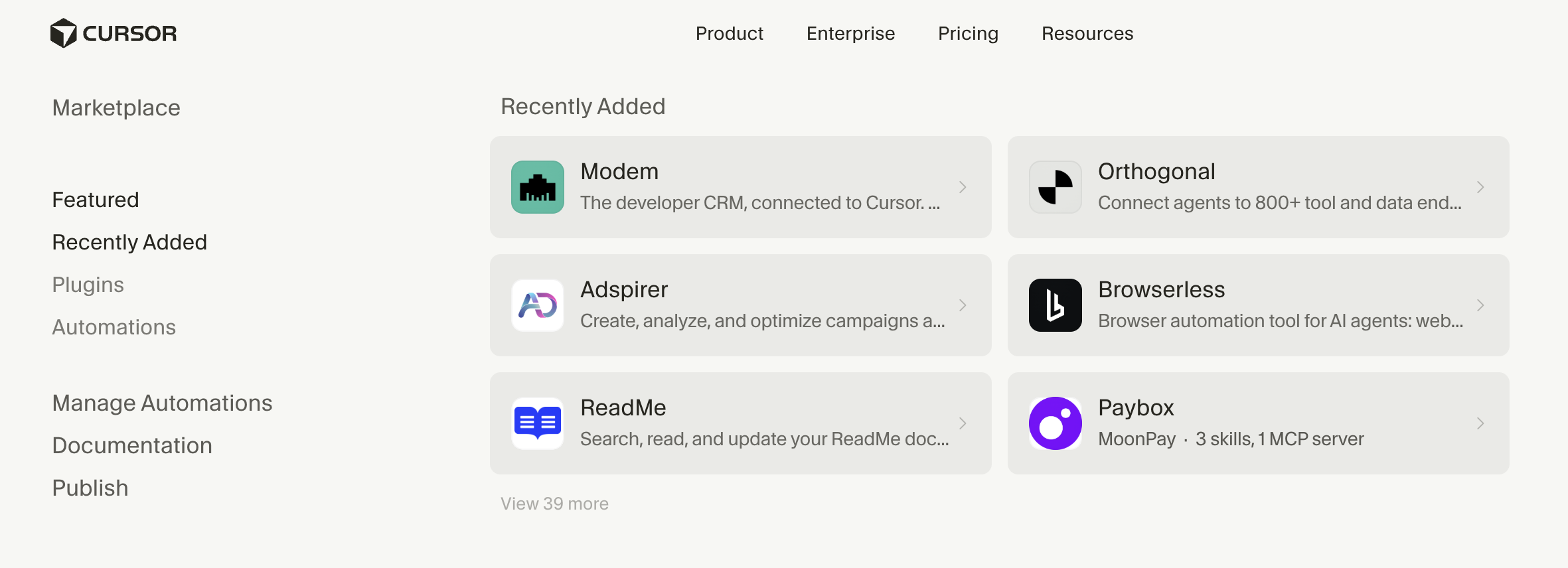
The ReadMe plugin is available in the Cursor marketplace for quick installation.
Authentication and write operations
By default, the plugin provides read-only access to public documentation. No authentication is required for searching, viewing API specs, and reading guides.
To enable write operations (drafting changelogs and pushing documentation updates), you must configure your ReadMe API key.
Generate your API key
- Sign into your ReadMe hub.
- Go to Settings → API Keys in your project.
- Click Create Key and give it a name (e.g., "Cursor MCP").
- Copy the key and keep it safe—you won't see it again.
Add your API key to the plugin
Enter the key when you install the plugin, or open the ReadMe plugin in Customize and select Configure to add or change it. Each key gives access to one ReadMe project.
Configure your API key manually
If you'd rather manage the server yourself, a readme entry in your own MCP configuration overrides the plugin's settings.
-
Open your Cursor MCP configuration file. It's located at:
- Project-level:
.cursor/mcp.json(in your project root) - User-level:
~/.cursor/mcp.json(in your home directory)
- Project-level:
-
If the file doesn't exist, create it.
-
Set your API key as an environment variable. In your terminal or shell profile, add:
export README_API_KEY="your-api-key-here"Do not commit this to version control. If you use a .env file, add it to .gitignore.
- Update your
mcp.jsonfile. Replace or add the ReadMe server entry with authenticated access:
{
  "mcpServers": {
    "readme": {
      "type": "http",
      "url": "https://docs.readme.com/mcp",
      "headers": {
        "Authorization": "Bearer ${env:README_API_KEY}"
      }
    }
  }
}- Restart Cursor to apply the changes.
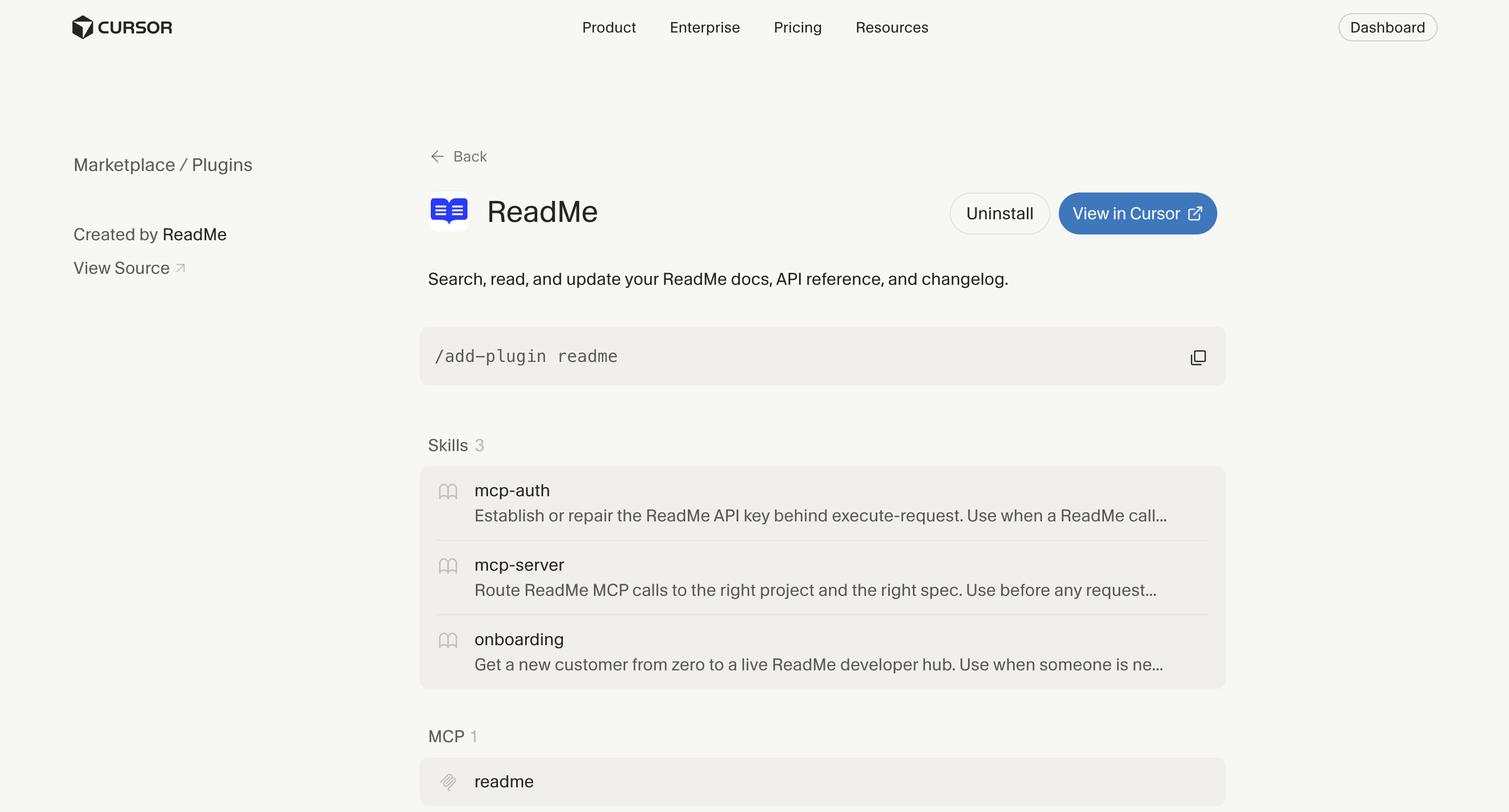
The ReadMe plugin details page showing installation command and available skills.
Once configured, you can draft changelogs and push documentation updates from Cursor using the plugin's write tools.
Search your documentation
Use the plugin to find guides, API reference pages, and changelog information.
In Cursor, invoke the plugin's search tool and ask natural language queries like:
- "Find guides about authentication"
- "Show me the create user endpoint"
- "Search for rate limiting documentation"
- "What endpoints use OAuth?"
The plugin searches across your entire ReadMe hub and returns matching pages, sections, and endpoints with links to view them in your hub.
Inspect your OpenAPI spec
Reference your API specification while writing code.
Ask the plugin to show you:
- Details about a specific endpoint (parameters, authentication, response schema)
- All endpoints matching a pattern (e.g., "all user endpoints")
- Authentication methods and how to implement them
- Request and response formats for an operation
The plugin returns the relevant spec details, including parameter types, required fields, examples, and descriptions.
Draft changelog entries
Create changelog entries without switching to your hub.
Use the plugin to:
- Ask it to draft a new changelog entry with a description of your changes.
- Specify the type (New Features, Improvements, Bugs Fixed, etc.) and affected areas.
- Review the draft in Cursor before pushing it to your hub for review or publishing.
If you've configured write access, you can push the draft directly to your hub.
Push documentation updates
When you have write access configured, you can open documentation updates for review or push them directly.
Provide the plugin with:
- The page you want to update
- The changes you want to make
- Whether to create a draft or push for immediate review
The plugin creates the update in your hub, either as a draft for team review or as a proposed change depending on your hub's workflow.
Troubleshooting
The plugin is not appearing in Cursor.
Confirm that you ran /add-plugin readme and that the command completed without errors. Restart Cursor if the plugin doesn't appear. If it still doesn't show, check your Cursor version—the MCP plugin system requires Cursor version 0.42 or later.
Search returns no results.
Verify that your ReadMe hub has public content. If your hub is behind authentication, ensure the plugin has access (either by making the hub public or by setting up API credentials).
I can't draft changelogs or push updates.
Write operations require API key authentication. Open the ReadMe plugin in Customize, select Configure, and check that your ReadMe API key is set. Confirm that the key has permissions to edit content in your hub.
I'm getting authentication errors on write operations.
Your API key may be expired or may lack the required permissions. Generate a new API key under Settings → API Keys in your project and update the plugin configuration.
Next steps
- Try a search. Ask the plugin to find documentation about your most common use case and verify it returns relevant results.
- Share with your team. If your team uses Cursor, let them know the plugin is available so they can install it too. Read-only access works for anyone with your public hub URL.
- Configure write access (optional). If your team needs to draft changelogs or updates from Cursor, set up API key authentication.
- Keep your docs current. Use the plugin's search to verify your documentation is up-to-date as you code, and use changelog drafting to announce changes.
Updated 12 days ago