

Sync with Bitbucket
Connect your project to a Bitbucket Cloud repository for bi-directional sync, including the app you install, how to disconnect, and how branch restrictions behave.
How to Set Up Bi-Directional Sync with Bitbucket
ReadMe connects to Bitbucket Cloud through the ReadMe Sync app. A workspace admin installs the app once, and it adds a ReadMe Bi-Directional Sync page to each repository's settings. After that, a repository admin can connect any empty repository in the workspace to a ReadMe project with a verification code.
Prerequisites
- You need to be an admin of the ReadMe project.
- You need admin access to the Bitbucket repository you're connecting.
- A Bitbucket workspace admin needs to install the ReadMe app. If that isn't you, ask them to install it first.
- The repository must be empty, with no commits or branches, not even a README.
On an Enterprise group? See Bitbucket Enterprise Sync.
Set Up
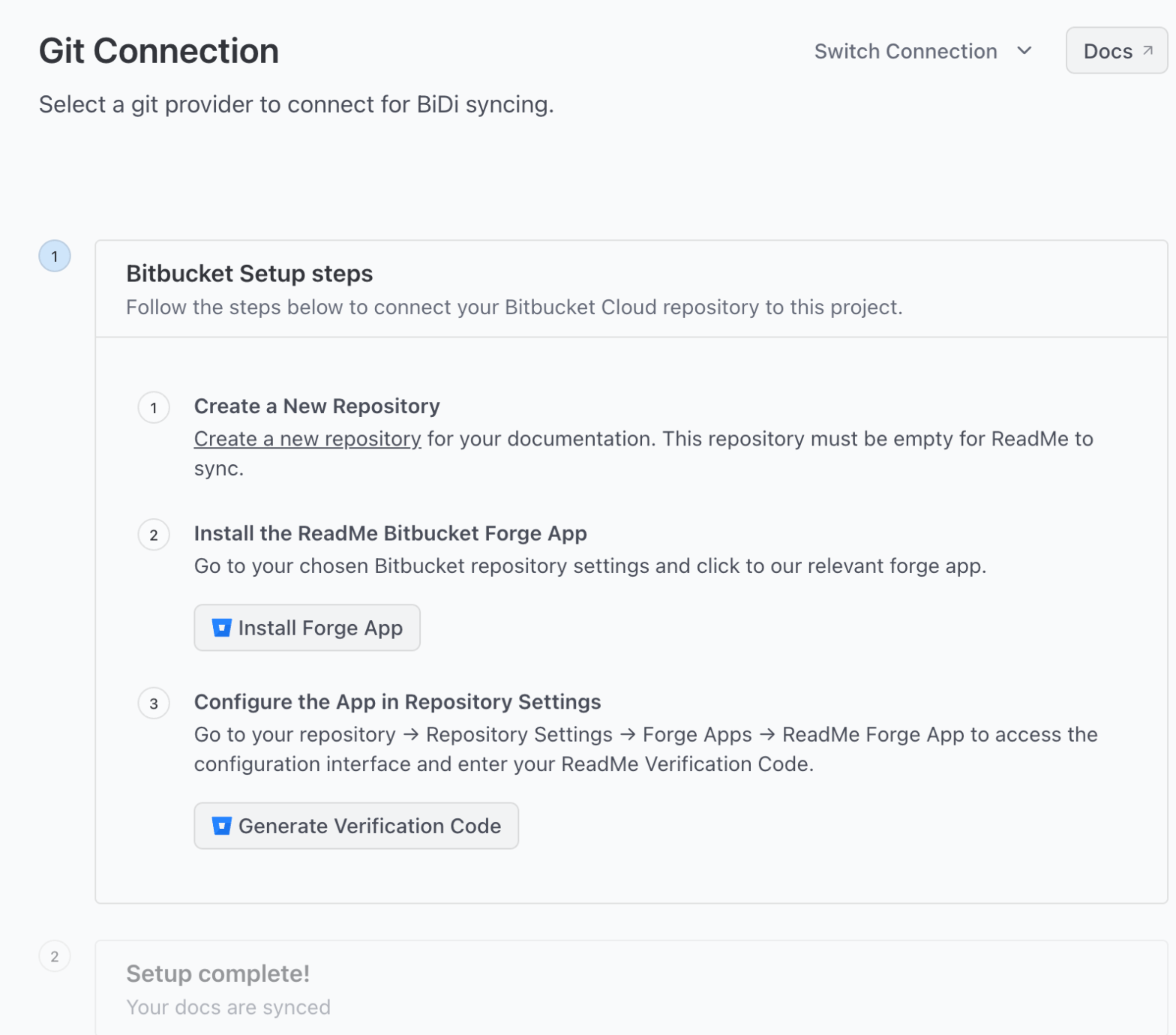
- Navigate to the Settings > Git Connection page.
- Select Bitbucket.
- If you haven't already, create an empty repository in Bitbucket. Set Include a README? to No.
- Click Install Forge App and install the app on the workspace that owns the repository. Skip this if the app is already installed there.
- Back in ReadMe, click Generate Verification Code and copy the code. It's valid for 15 minutes.
- In Bitbucket, open the repository and go to Repository settings > Forge Apps > ReadMe Bi-Directional Sync (under ReadMe Sync).
- Paste the code and click Connect Repository.
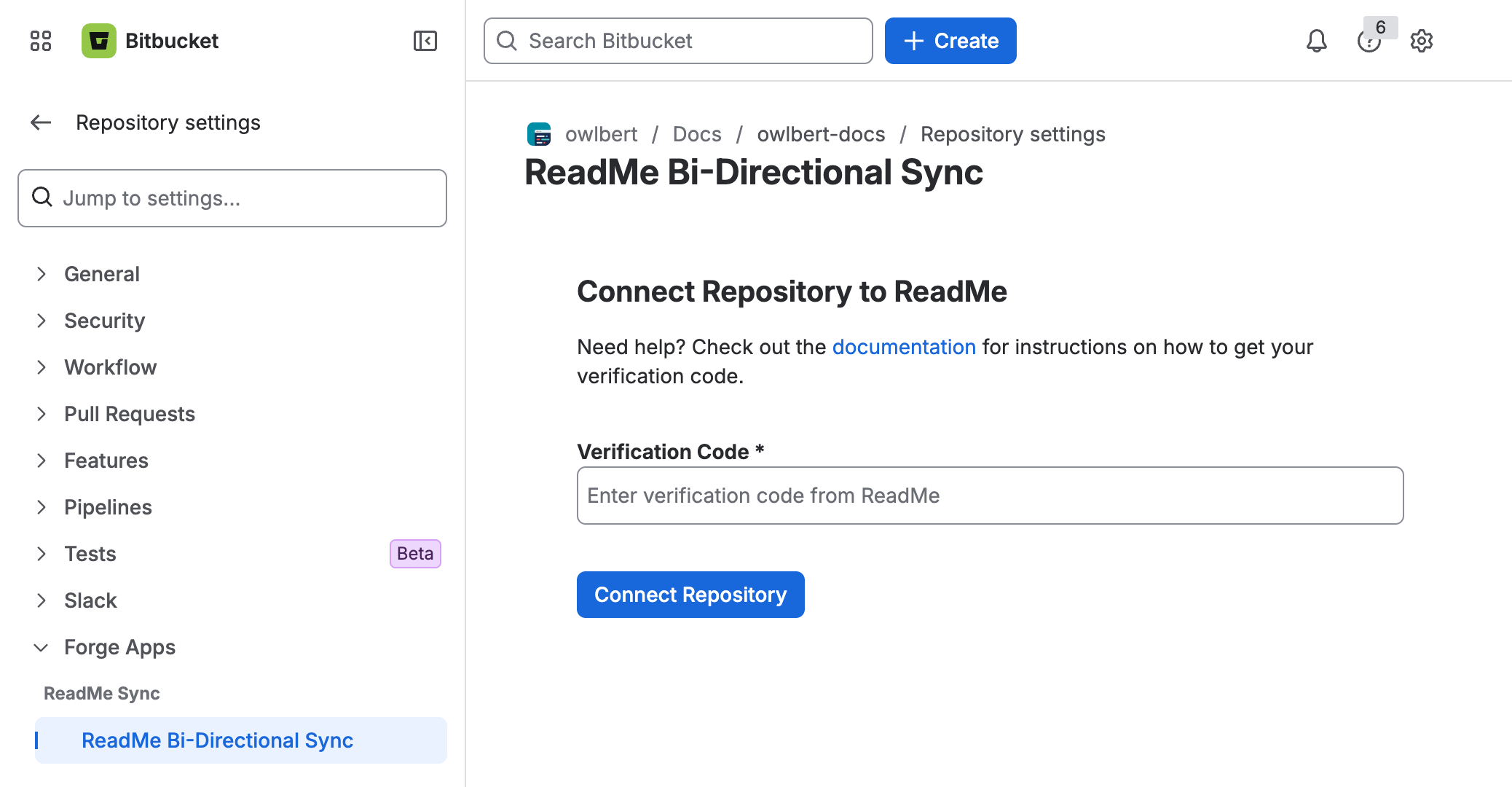
ReadMe moves on to the connected view by itself once the code is accepted, and starts the first sync. If the code expires first, generate a new one.
ReadMe checks that the repository is empty both in Bitbucket and again before the first sync. If the repository has any branch, the connection is refused and nothing is written to it. Create a new, empty repository and try again.
Disconnecting
From ReadMe
- Go to Settings > Git Connection.
- On the Docs repository card, click Connected and choose Disconnect Repository, then click Disconnect to confirm.
Your content stays in the Bitbucket repository, and ReadMe tells the app that the repository is no longer connected. You can't reconnect a project to the same repository afterwards, because it isn't empty anymore. To sync again, connect a new empty repository.
From Bitbucket
You can't disconnect a single repository from Bitbucket; the app's page in repository settings points you back to ReadMe. If you uninstall the app from the workspace, or it loses access to the repository, sync stops and ReadMe shows Repository not accessible on the Git Connection page. The project stays linked until you disconnect it in ReadMe, so finish there.
To manage the app's installation, click the workspace name in the connection dropdown at the top of Settings > Git Connection. It opens your workspace's app settings in Bitbucket.
Changing Repositories
- Within ReadMe, disconnect the project as above.
- Within Bitbucket, create a new empty repository in a workspace where the app is installed.
- Return to ReadMe, generate a new verification code, and enter it in the new repository's ReadMe Bi-Directional Sync settings.
Bitbucket Branch Restrictions
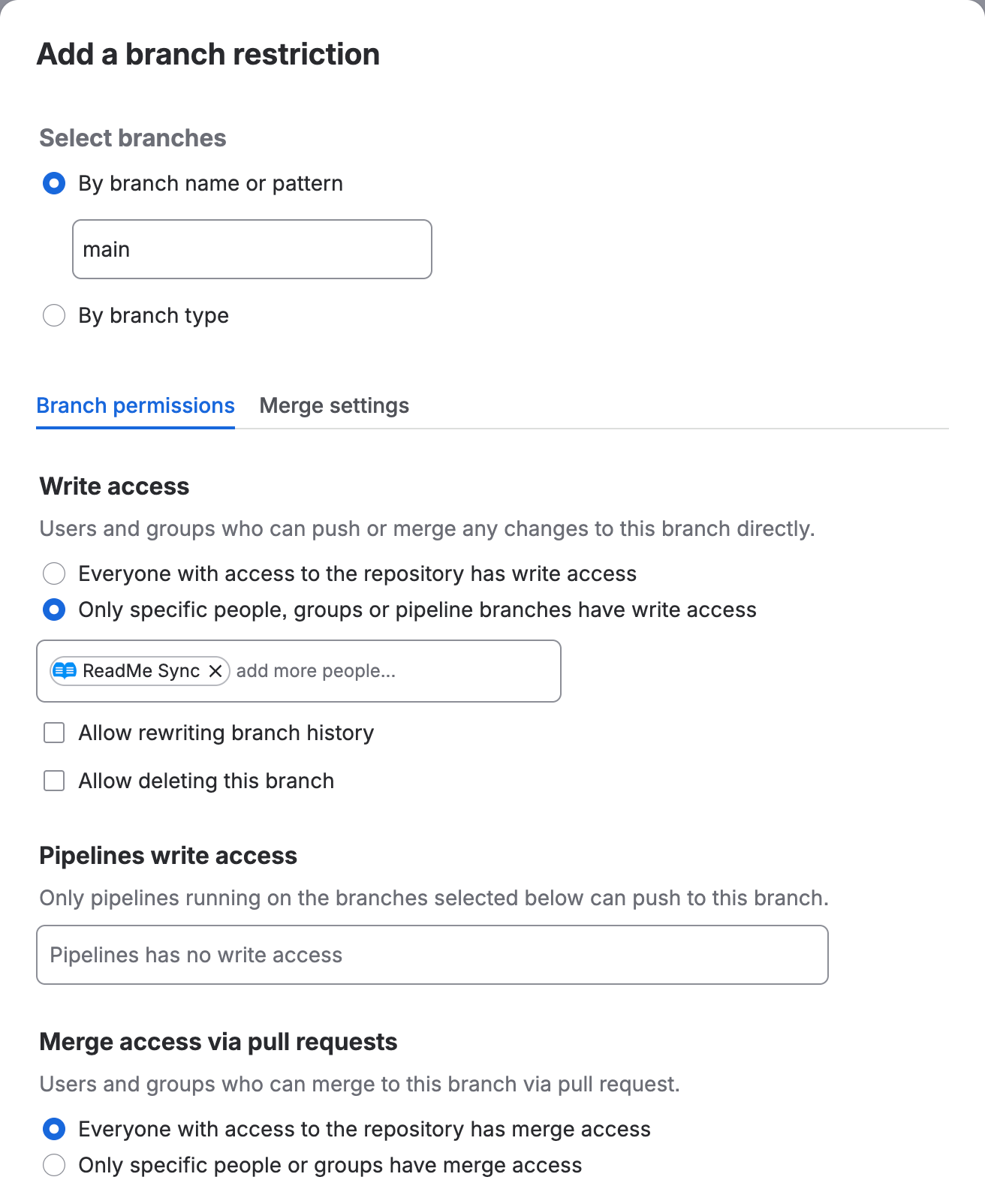
If your Bitbucket repository uses branch restrictions, you'll need to give the ReadMe Sync app write access to your synced branches. ReadMe pushes commits directly to those branches as the app, not as a user, and doesn't bypass your restrictions automatically. If a restriction blocks the push, Settings > Git Connection in ReadMe reports Push rejected: the target branch is protected for the affected branch, and changes stop flowing in both directions for that branch.
- In Bitbucket, go to Repository settings > Branch restrictions.
- Edit the restriction that covers the synced branch.
- Under Write access, choose Only specific people, groups or pipeline branches have write access if it isn't already selected.
- Search for ReadMe Sync (Forge app), add it, and click Save.
A few things to check if the error persists:
- Do this for every restriction that applies to a synced branch, including
main. - Restrictions set at the project level apply on top of repository restrictions and need the app added too, under Project settings > Branch restrictions.
- If your restrictions are managed by an automated tool, make the change in that tool so it isn't reverted on the next run.
- After updating the restrictions, save a small change in ReadMe or push a commit to trigger a new sync, then confirm the error has cleared on Settings > Git Connection.
For the full list of symptoms, see Troubleshooting on the Bi-Directional Sync page.
FAQ
What permissions does the Bitbucket app need?
The ReadMe Sync app requests read and write access to repositories, to sync content in both directions, and read access to the workspace. A workspace admin installs it, and only a repository admin can connect a repository.
Is Bitbucket Server or Data Center supported?
No. Only Bitbucket Cloud is supported.
Bitbucket says I need admin access to connect.
Connecting writes to the repository, so only repository admins can enter the verification code. Ask a repository admin to do it, or to give you admin access.
Bitbucket says the repository can't be connected.
The repository isn't empty. ReadMe only connects to repositories with no commits or branches. Create a new, empty repository and connect that instead.
Updated 2 hours ago