

Collaboration
Leave comments and edit alongside teammates in real-time.
Use comments in the editor to share feedback and discuss changes with your teammates. You can comment on text, mention a teammate, and resolve the comment when the work is done. Any teammate who can edit a page can comment on it. Comments are not commited to git and readers of your docs do not see them.
| Starter | Pro | Enterprise |
|---|---|---|
Add a Comment
There are several ways to make a comment in the ReadMe editor.
-
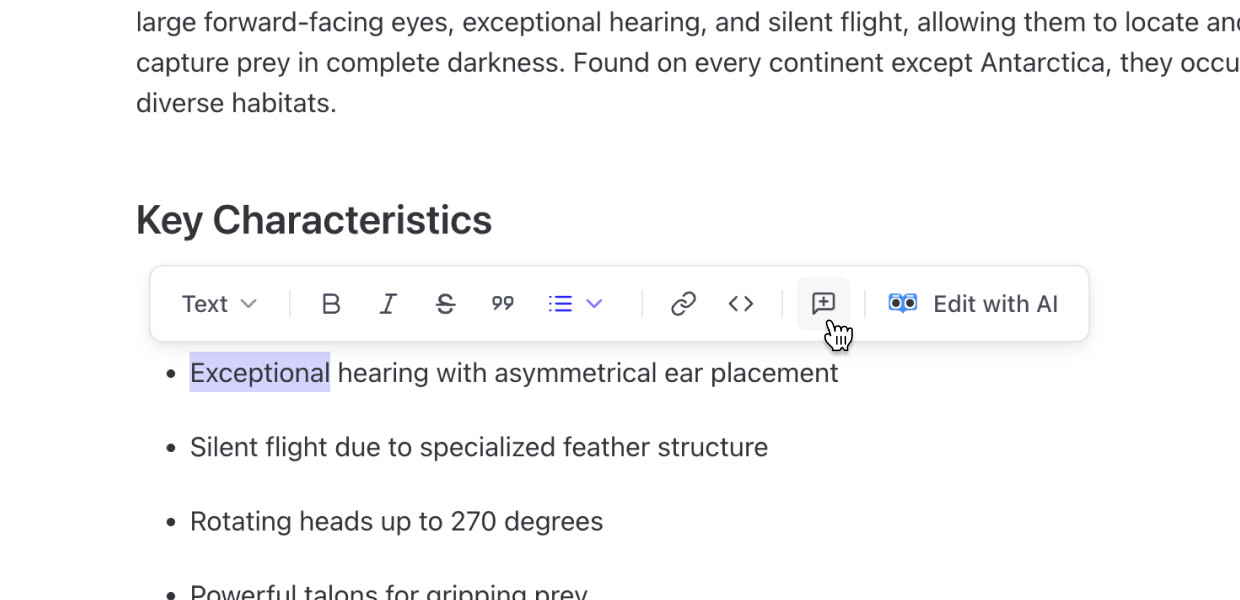
Select any text and click Comment in the selection toolbar.
-
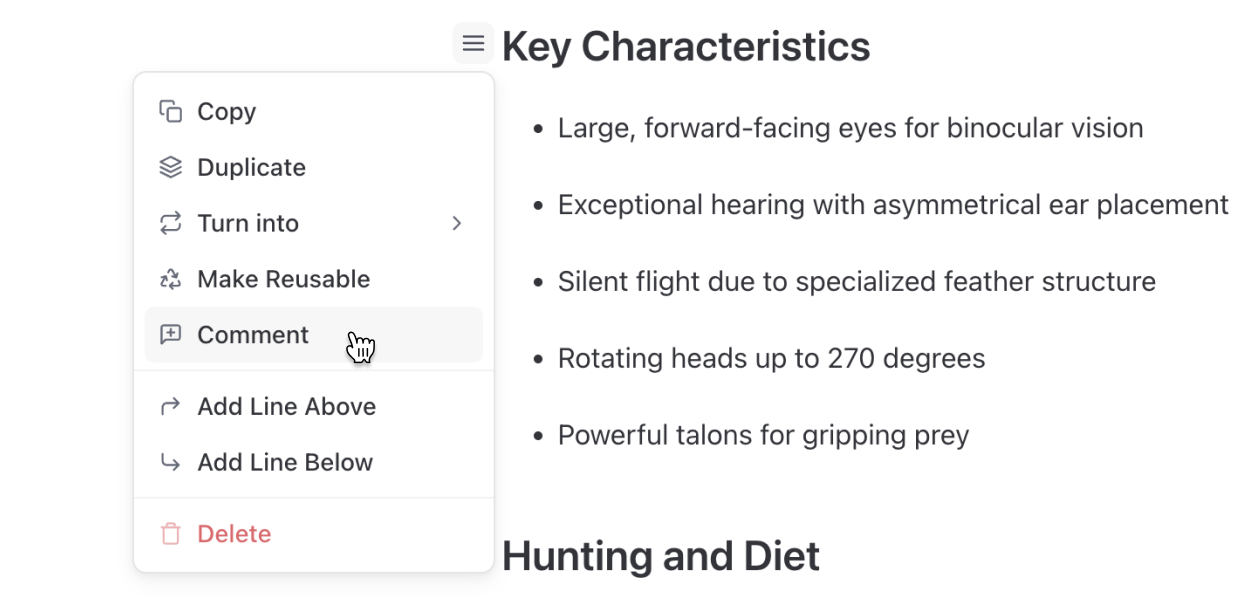
Click the ≡ handle that appears to the left of a hovered content block and choose Comment from the menu that pops up.
-
If there is an existing comment or discussion you'd like to respond to, click the Reply button to add to a comment thread.
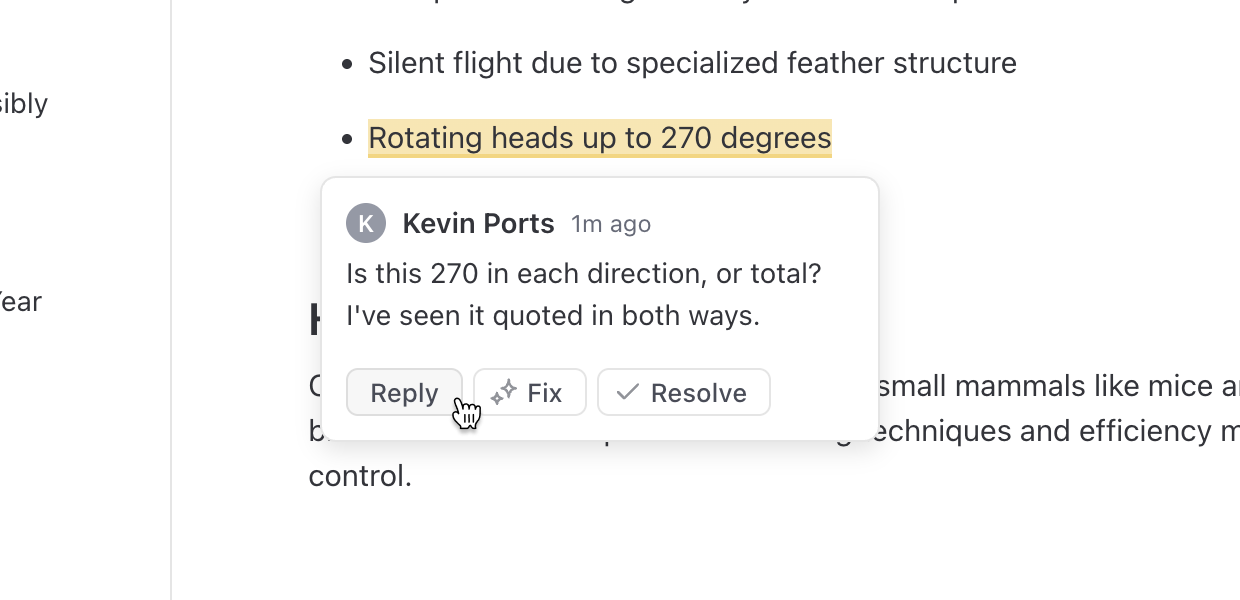
Comments will appear to the right of the corresponding text.
Mention a Teammate
To mention a teammate type @ followed by the person's name and choose the person from the pop up menu.
The mentioned teammate will recieve a notification with a link to the comment. If a teammate cannot edit the current version, their name shows under Cannot comment, and you cannot mention them.
Add Text Styling to Comments
Comments support bold, italic, inline code, and links. Use a shortcut, or type the Markdown.
| Style | Shortcut | Markdown |
|---|---|---|
| Bold | ⌘B | **text** |
| Italic | ⌘I | _text_ |
| Inline code | ⌘E | `text` |
To add a link, paste a URL over selected text. A URL that you type also becomes a link.
View and Manage Comments
Commented text has a yellow highlight in the editor. Each open comment shows next to its text.
To see all comments on the page, click the Comment icon in the right rail. This opens the Comments panel. Click a comment in the panel to go to its text. Use the filter at the top of the panel to show or hide Open, Outdated, and Resolved comments.
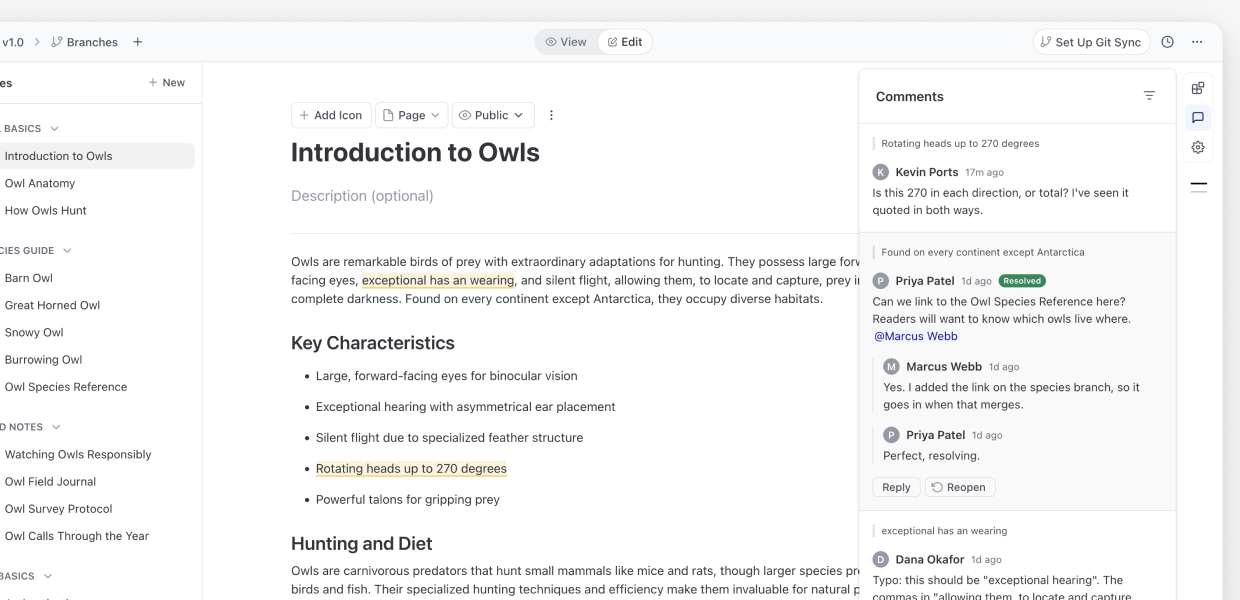
Hover a comment to show its ⋮ menu.
| Action | Steps |
|---|---|
| Reply | Click Reply. Then type your reply. |
| Resolve | Click Resolve. To undo, click Undo in the Comment resolved message. |
| Reopen | In the Comments panel, click Reopen on the resolved comment. |
| Edit | Click ⋮ then Edit. |
| Delete | Click ⋮ then Delete. ReadMe also deletes the replies. You cannot undo a delete. |
| Copy link | Click ⋮ then Copy Link. The link opens the page and selects the comment. |
Only the author can edit a comment, but both the author and admins can delete it.
If someone deletes the text or block that a comment is on, the comment gets an Outdated label. You can still find it in the Comments panel.
Comments belong to the branch or version where you add them. When you merge a branch, ReadMe resolves its open comments.
Your teammates get a notification when someone adds a comment or a reply.
Multiplayer Editing
More than one teammate can edit the same page at the same time via multiplayer editing. You see changes from your teammates as they make them. When a teammate adds, replies to, or resolves a comment, you see the change without a reload. Multiplayer editing works on branches and on the main version of your docs.
Updated 4 days ago