

AI Translations
Translate every project in your Enterprise group, and keep each translation current on every commit.
AI Translations turns every project in your Enterprise group into the languages your end users speak. Pick a language, choose which projects get it, and AI translates every page into a new version of each project. From then on, every commit to your source language updates the translations automatically, so they stay current with your source docs. Review each translation on a branch before it goes live.
Available on Enterprise plansAI Translations runs on Enterprise groups using ReadMe Refactored. Your Customer Success Manager turns it on for your group and unlocks each language you want. To get started, reach out to your account team or contact us at [email protected].
Getting Started
Set up AI Translations once for your whole group from the Enterprise Dashboard. Only group admins can change translation settings; other teammates can view the Translations page but not edit it.
- Open your group's Enterprise Dashboard and go to Translations.
- In the language list, select a language with the Ready to turn on label. If the language you want isn't there, click Contact Your CSM (Customer Success Manager) and request access.
- Under Projects, keep All projects or pick the projects that should get the language.
- Click Turn On.
AI branches from each picked project's stable version to create a language version (for example, v1.0-de). It then starts translating every page. New versions stay unpublished until you publish them, so end users don't see a language until you're ready.
The Translations Page
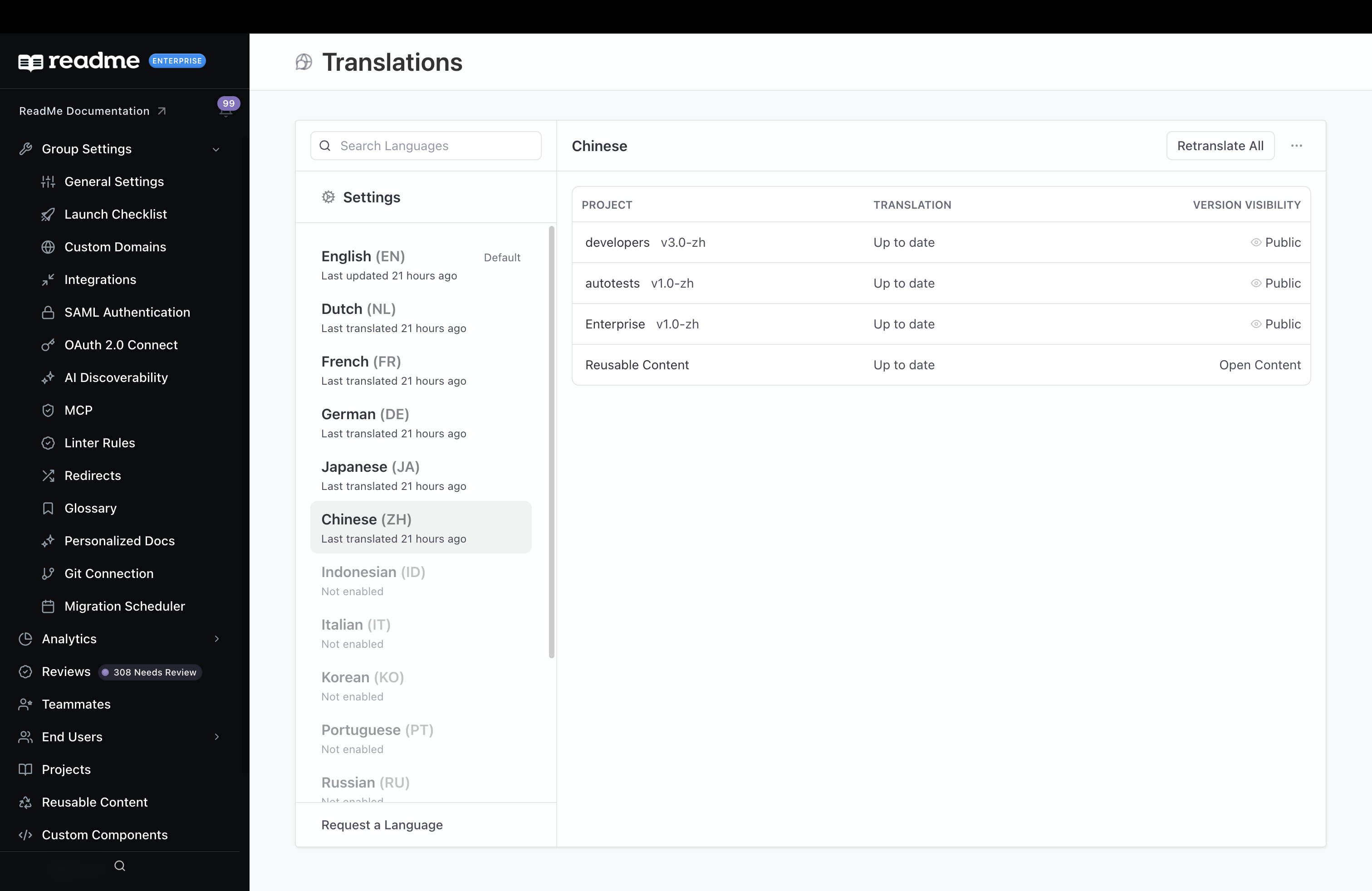
The left side lists every language ReadMe can translate into, with Settings above the list. The list shows your source language (usually English) first, with the Default label and its latest update time. Next, it lists languages you've turned on, followed by those you haven't. Use the search bar to find a language by name or code.
Selecting a language that's on shows each project it covers:
- Translation shows each project's status: up to date, translating (with a page count), queued, or awaiting translation retries.
- Review appears while Review Before Publishing is on. Review Changes opens the project's review branch.
- Version Visibility shows whether each project's version is Public or Unpublished. Click it to open the project's Versions settings.
- Reusable Content has its own row, since AI also translates the group's reusable content and custom components.
Reviewing and Publishing Translations
AI translations land in a project's language version as soon as they finish. To check them first, turn on Review Before Publishing in Settings. From then on, each project's translations wait on a review branch. ReadMe names this branch using the language's version (for example, v1.0-de_ai-translation-review).
- When a run finishes, the project's row shows Review Changes. Click it to open the review branch.
- The Review tab lists every translated page with the diff for each one, the same way as any other review. Click Request Review to ask a teammate to look.
- Click Merge to move the translations into the language version.
Review Before Publishing requires a plan that includes branches.
Merging a review doesn't make a language visible to end users on its own. A language's versions start Unpublished, and the Translations page displays a banner next to its name. Click Publish in that banner to publish all unpublished versions of the language across projects. Alternatively, click Version Visibility in the table to publish one project at a time from its Versions settings.
Keeping Translations Current
Every commit to your source language translates the pages that changed, in every project the language covers. With Review Before Publishing on, those translations wait on the review branch until it's merged.
If AI fails to translate pages, the project's row shows a count of those pages. Click the count to see the pages, then open any page or click Retry Untranslated Pages to retry the translations.
Fix a single page from the editor. Open the page in the language, then open the language menu in the editor's footer (for example, German · AI). Check its status and click Re-translate. The same menu appears when editing reusable content.
To translate a language again from scratch, click Retranslate All at the top of its pane.
Retranslate All replaces your edits. AI translates every page again, including pages your team edited in that language. End users see each page's original text until AI finishes translating it.
Settings
Click Settings at the top of the language list. The group's translation settings are one form: change what you need, then click Save in the footer. Discard puts everything back.
The Languages picker at the top right starts on All languages. Review Before Publishing and AI Context apply to the languages you pick there. Pick one language to configure it individually, or several to configure them together. Each language in the picker has a Context or Review badge for the settings it has on.
If none of the picked languages uses AI, ReadMe displays those two settings but disables them. A note identifies which language uses Manual translation.
- Review Before Publishing holds AI translations on a review branch in each project until it's merged. See Reviewing and Publishing Translations.
- AI Context is guidance the AI follows for the picked languages, such as tone, terms to keep, or phrasing to avoid. It applies the next time each page is translated. With several languages picked whose context differs, the field starts empty, and what you save applies to all of them.
- Do Not Translate lists words AI must never translate, like your product name, one per line. AI keeps these words exactly as you write them in every language and every project.
Managing a Language
The … menu next to a language has:
- Switch to Manual stops AI from updating the language. Its versions stay as they are, and your team keeps them up to date by hand.
- Click Switch to AI to let AI update a Manual language after your Customer Success Manager unlocks it. AI replaces any content your team wrote in that language with its translations.
- Change Projects picks which projects the language covers. A project you add starts translating when you save; a project you remove keeps its version, but commits no longer update it.
- Click Turn Off to remove the language from every project's language picker. Its versions stay as they are.
FAQ
Which languages are supported?
Chinese, Dutch, French, German, Indonesian, Italian, Japanese, Korean, Portuguese, Russian, Spanish, Swahili, and Vietnamese. To ask for another language, click Request a Language at the bottom of the language list.
Can I edit a translation by hand?
Yes. Edit the page in its language like any other page. Your edit stays until the source page changes again or you re-translate the page or language, which replace it with a fresh AI translation.
Does AI translate the changelog?
Not yet. Each language version of your docs shows the changelog in your source language. End users still see every entry.
What plan do I need?
AI Translations is available on Enterprise plans. Contact us to learn more.
Updated 41 minutes ago