

Slack AI Writer
Create, edit, and manage your documentation directly from Slack with an AI-powered writing assistant.
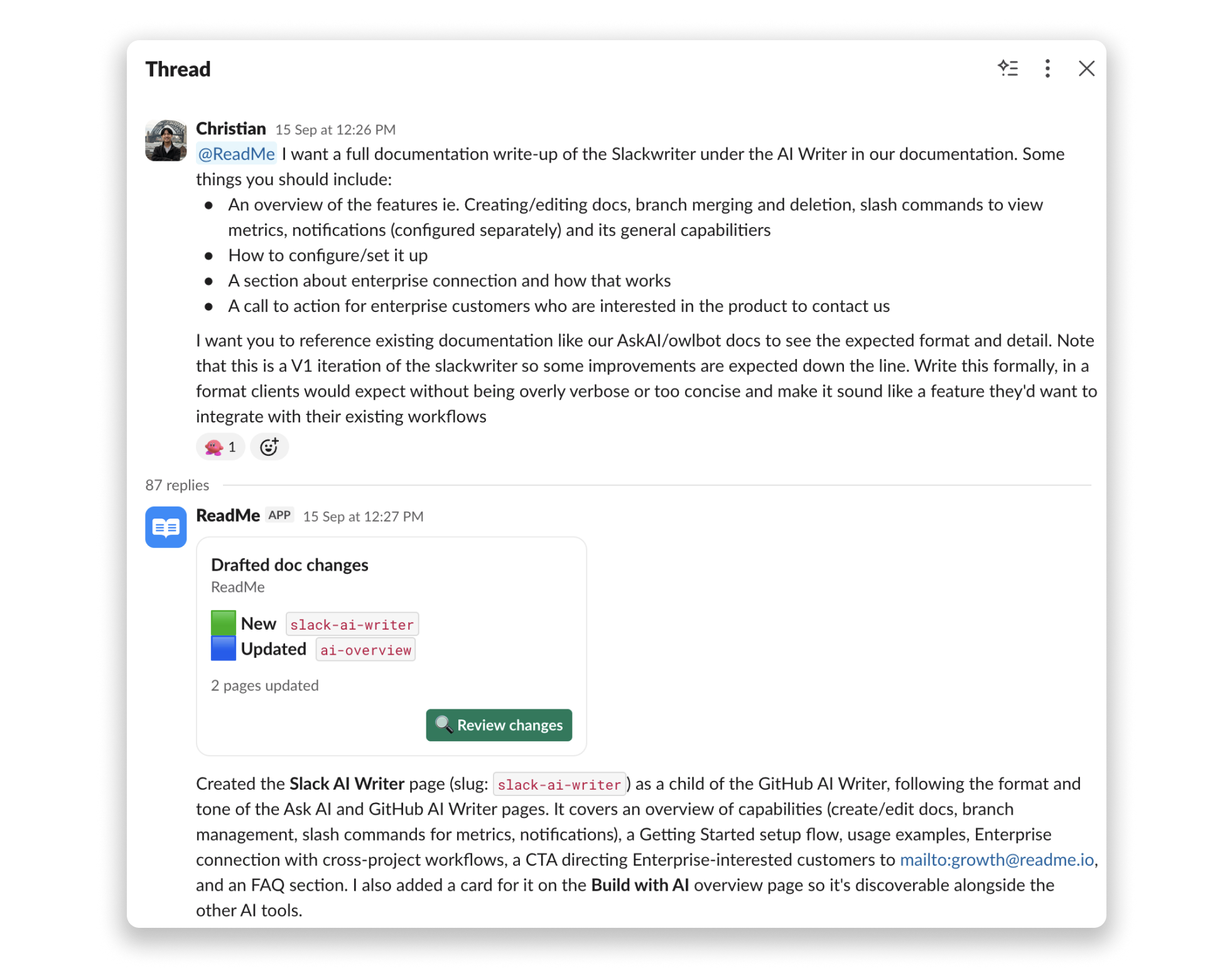
The Slack AI Writer puts ReadMe's documentation tools where your team already works. Create pages, edit content, manage branches, and check project metrics without leaving Slack. Every change goes through a review branch, so nothing hits your live docs until you approve it.
When someone flags a doc issue in Slack, you fix it in the same thread. No tab switching, no lost context.
What You Get
Create and edit pages
Describe what you need in plain language. The Slack AI Writer reads your current content, applies changes on a working branch, and tells you exactly what changed.
Manage branches from Slack
Merge a branch to publish your edits, or delete it to start over. The Slack AI Writer confirms before any destructive action.
Pull metrics on demand
Use slash commands to check page views, search trends, and API log activity mid-conversation.
Stay in the loop with notifications
Get real-time alerts in your configured Slack channels for events like suggested edits and discussion posts. Notification preferences are configured on the Slack settings page under Personal notifications.
What the Slack AI Writer Doesn't Do
- It never merges a branch on its own. You always confirm first.
- It doesn't touch notification settings. Those are configured on the Slack settings page.
- It doesn't support writing with images right now. This will need to be manually added through the editor.
Getting Started
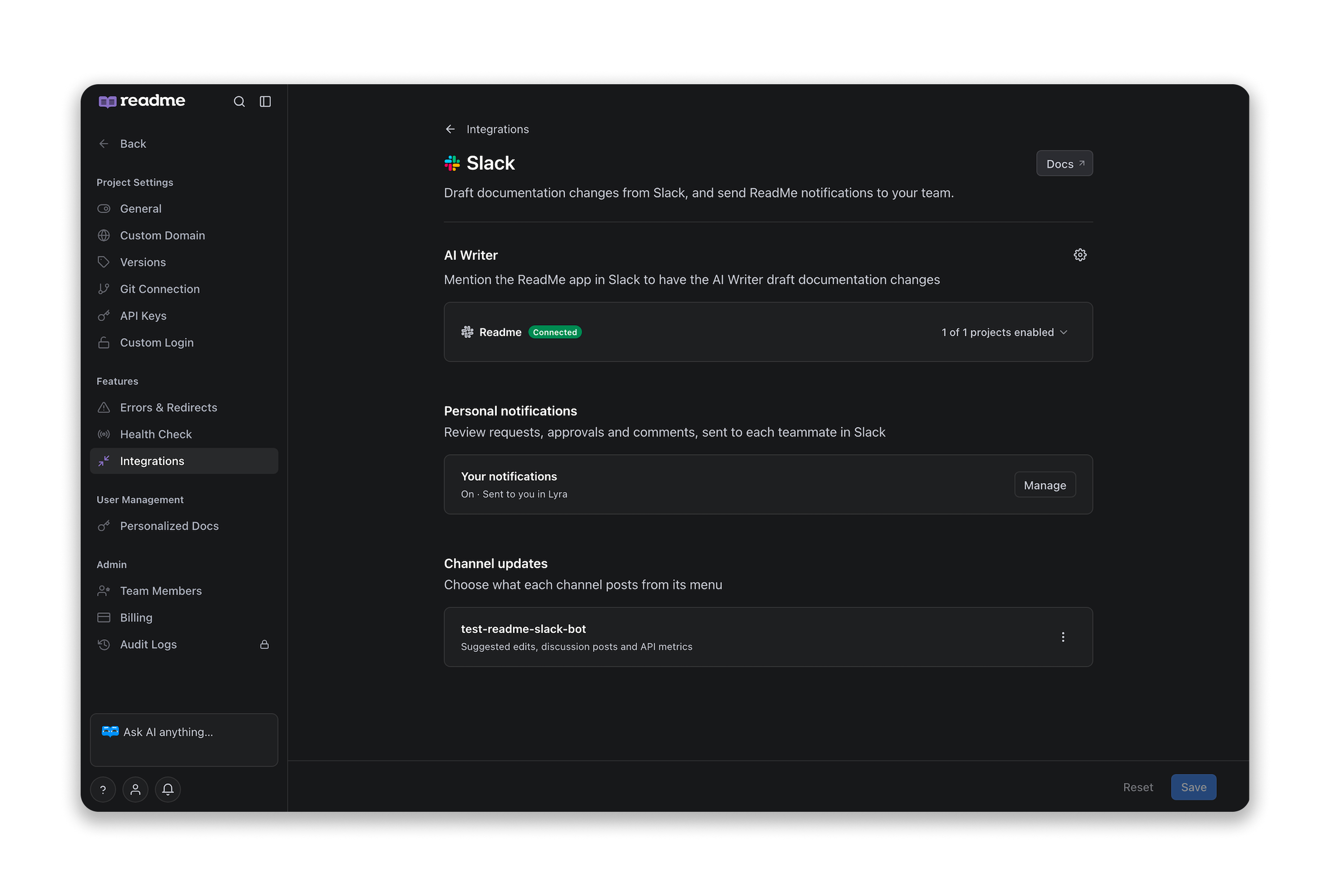
For full setup instructions, see the Slack integration guide.
- In your ReadMe project, go to Settings → AI → AI Writer
- Click on the Slack banner, and then Connect Slack to authorize the app in your workspace
- Select which projects the Slack AI Writer can write to using the projects enabled menu
- Mention
@ReadMein any channel it has access to, or send it a direct message to get started
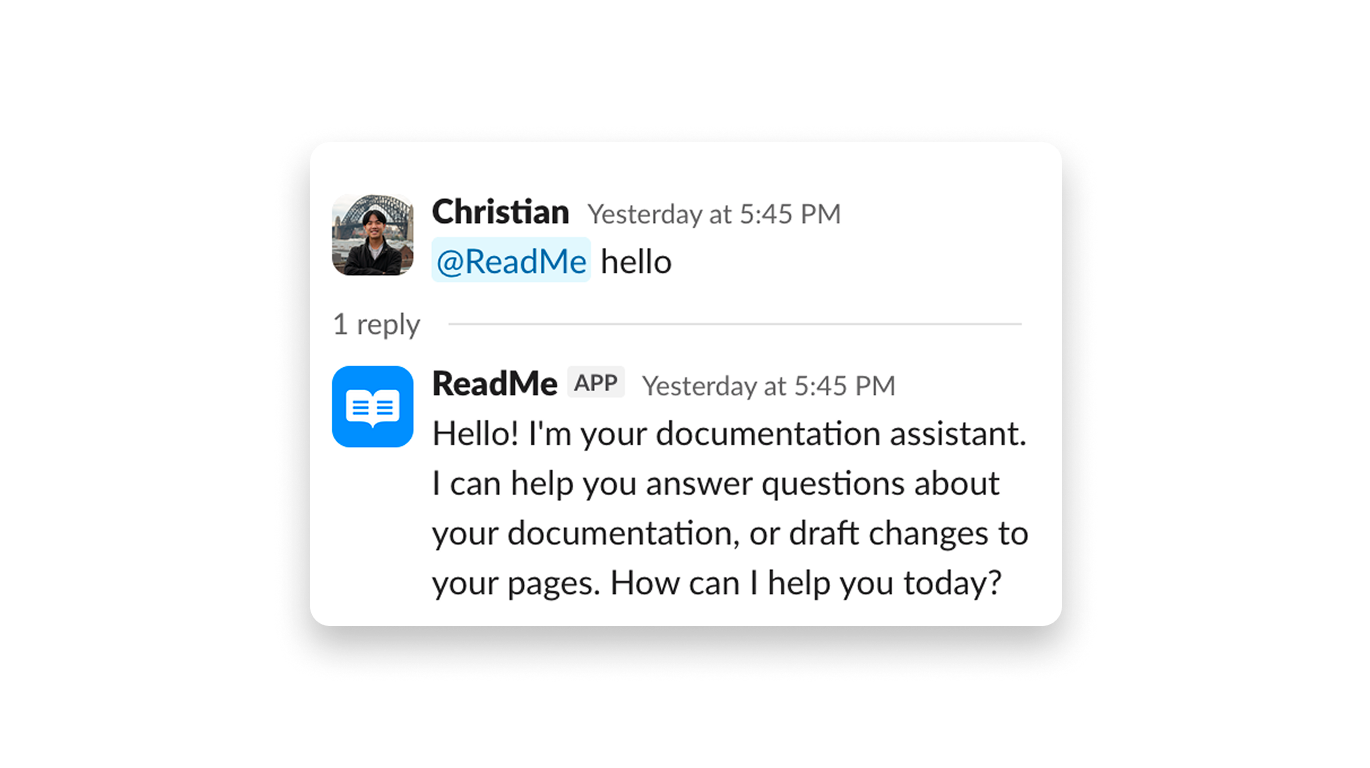
Once connected, you can ask it to create a page, update a section, or pull up your project metrics.
Using the Slack AI Writer
Mention @ReadMe in a channel or in an existing thread. Each thread keeps its context, so you can iterate across multiple messages.
Creating and Editing Docs
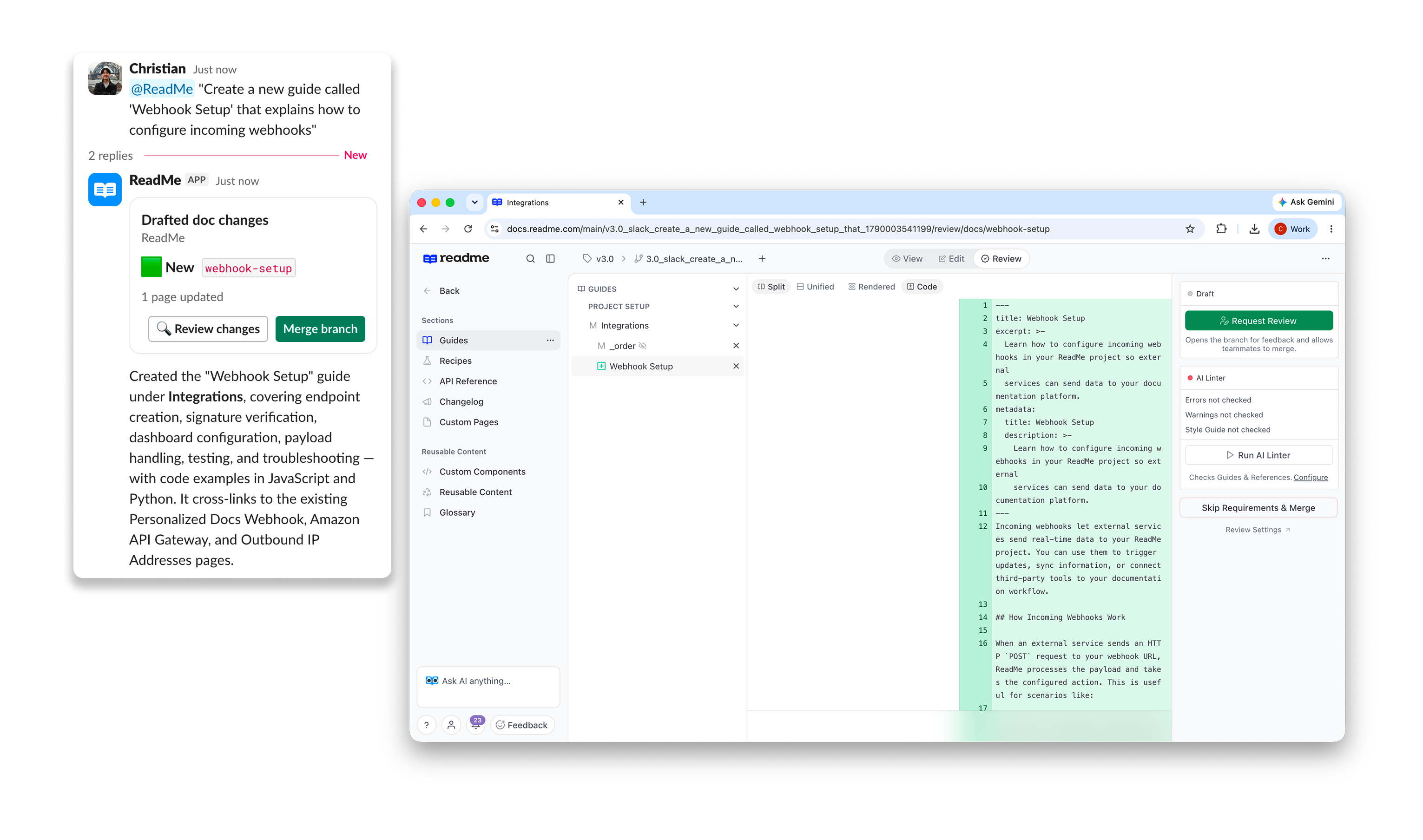
Tell it what you need:
- "Create a new guide called 'Webhook Setup' that explains how to configure incoming webhooks"
- "Update the Authentication page to add a section on API key rotation"
- "Rewrite the Getting Started guide to be more beginner-friendly"
The Slack AI Writer reads the current page, applies your changes on a working branch, and reports back with a summary. Review the branch in ReadMe's side-by-side diff before merging.
Branch Management
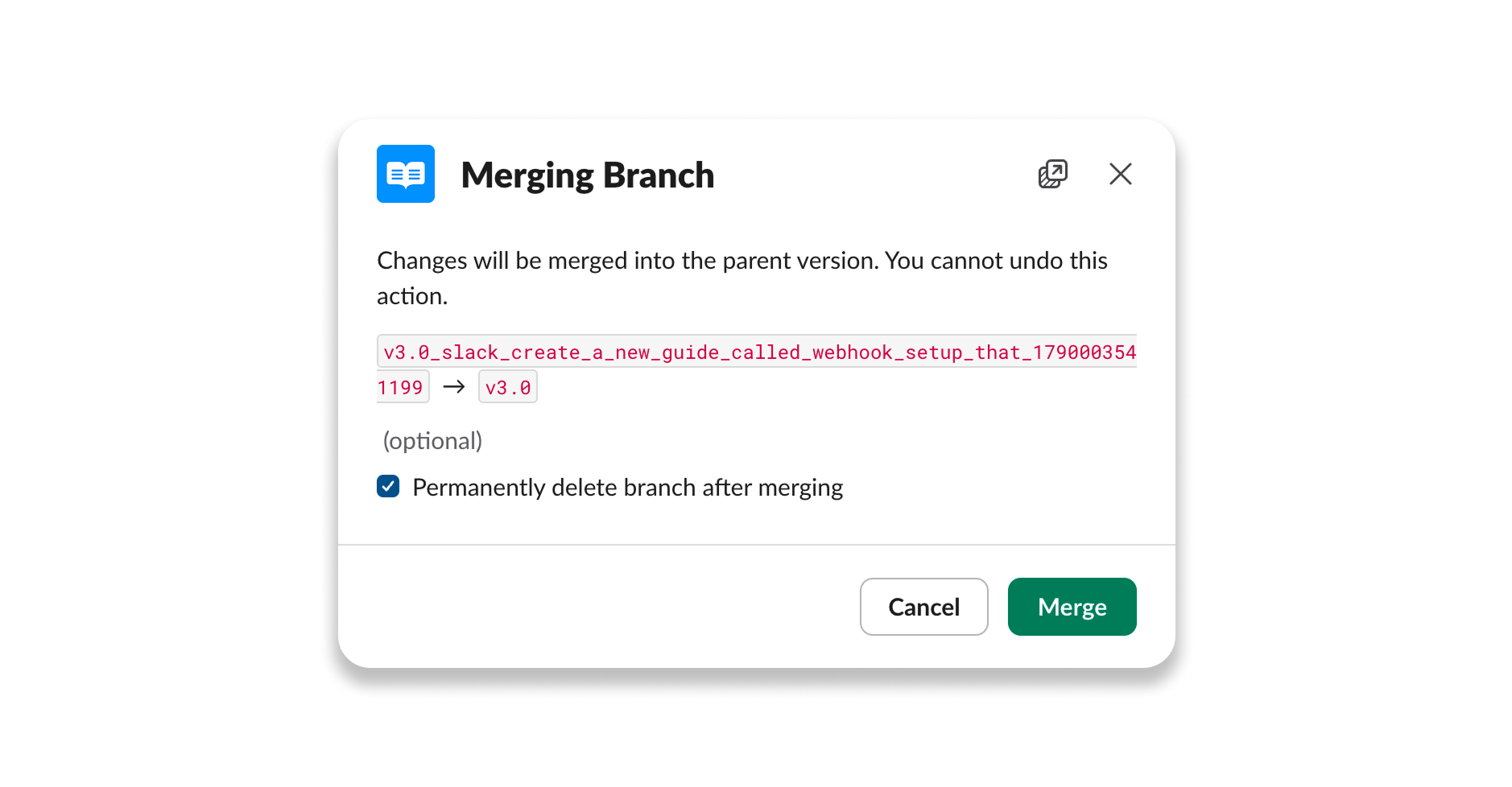
Control your working branches via prompts without leaving Slack:
- "Merge the current branch" publishes all drafted changes to your live docs
- "Delete the current branch" discards pending changes so you can start clean
The Slack AI Writer always confirms before executing destructive actions. Branch rules (merging and deletion permissions) are configured on the Slack settings page.
Slash Commands
Use slash commands to pull metrics into your conversation:
| Command | What it does |
|---|---|
/statuscodes [project] | Get top status codes |
/recentlogs [project] | Returns a list of API logs from metrics |
/topendpoints [project] | Get top endpoints called from API metrics |
/topusers [project] | Get top users from API metrics |
/readme-feedback [message] | Leave feedback for the Slack AI Writer |
Cross-Project Workflows (Enterprise)
With an Enterprise connection, you can work across multiple child projects from one Slack workspace. Each thread you start is pinned to one project via a project selector.
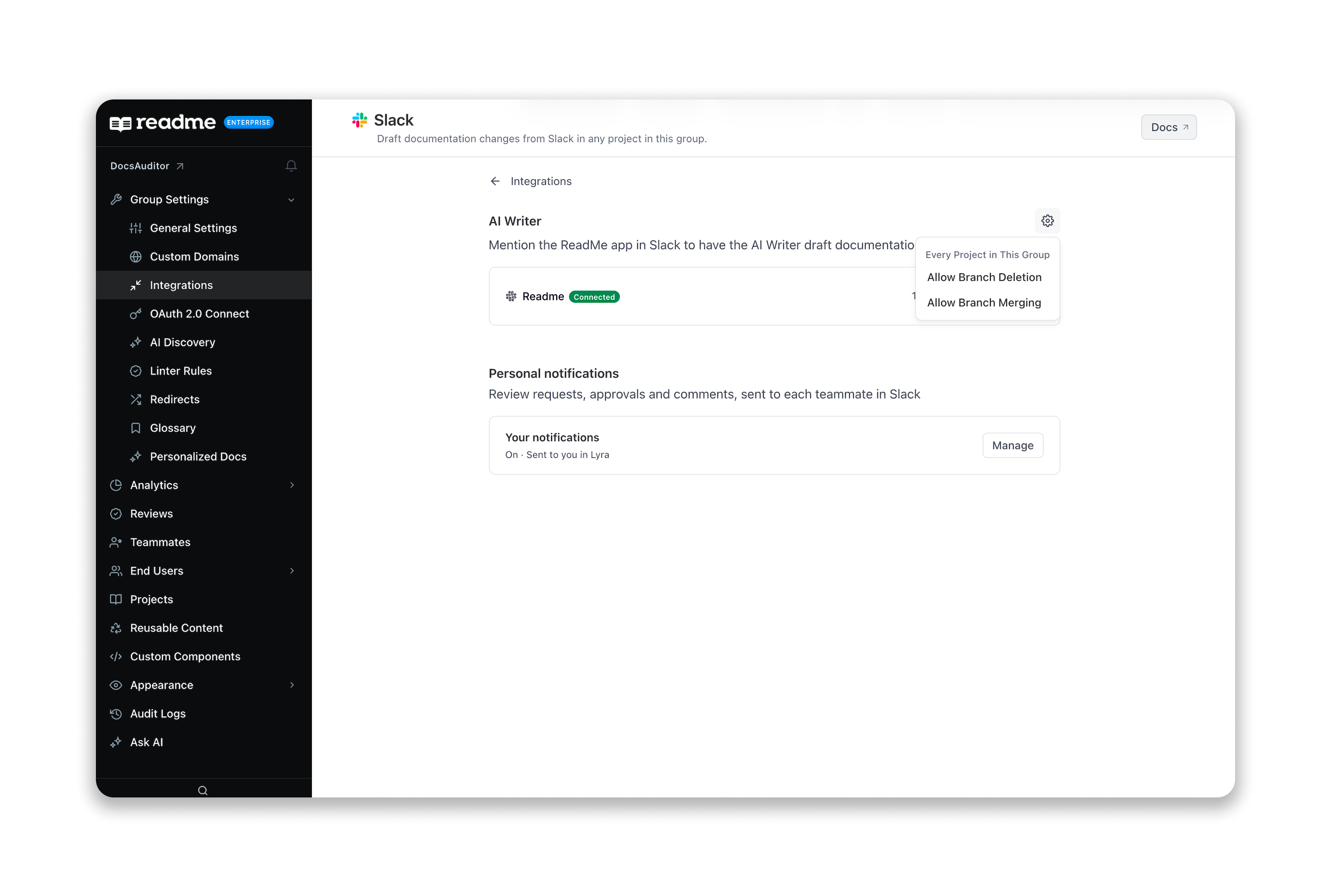
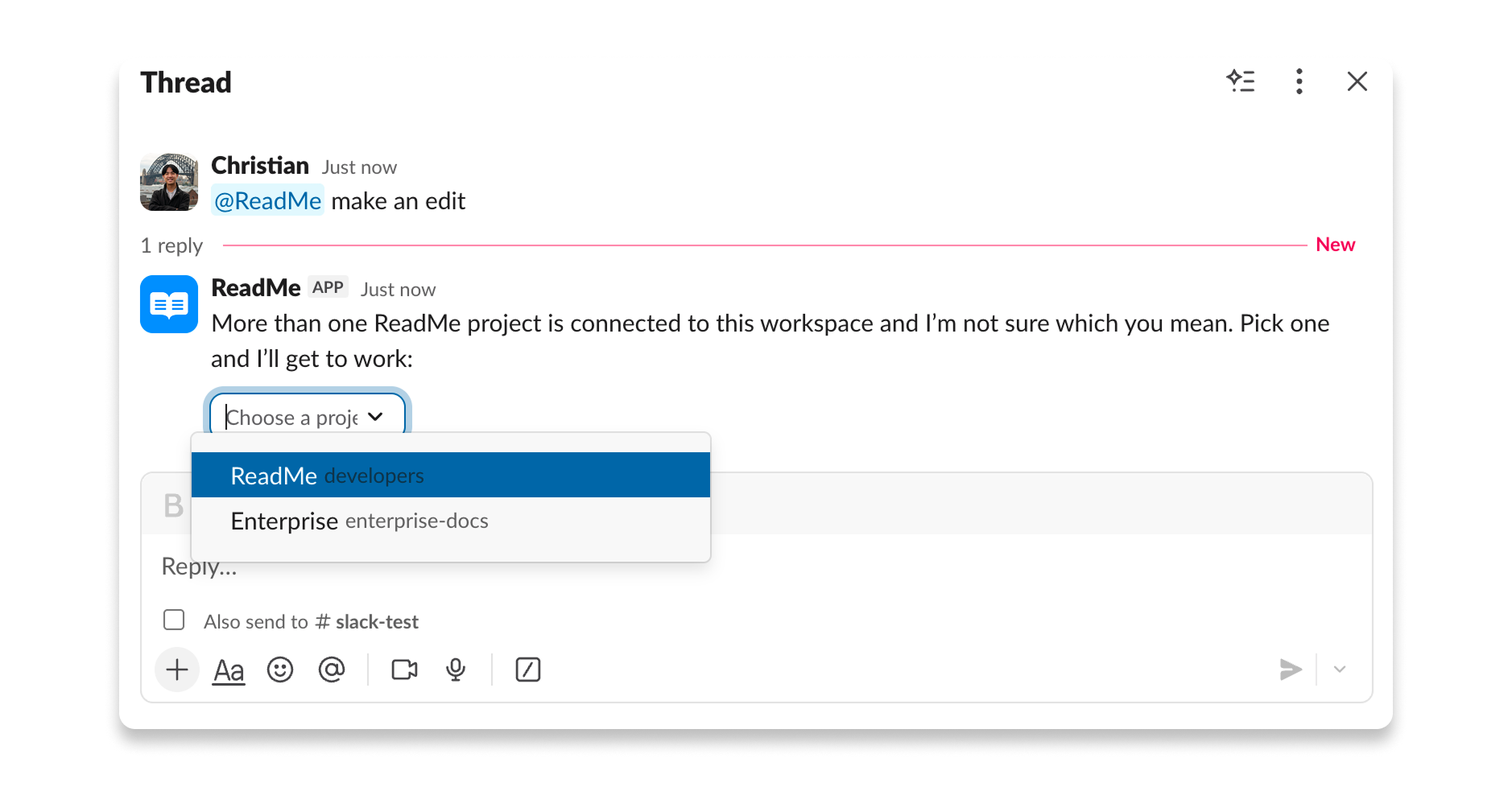
For Enterprise setup and configuration, see the Slack integration guide.
Available on EnterpriseOn Enterprise, you can connect the Slack AI Writer to any child project in your Enterprise Group. Don't have Enterprise yet? Book a demo to see what's included.
FAQ
What plan do I need?
The Slack AI Writer is available on Pro plans and above. Enterprise connection requires an Enterprise plan.
Does it modify my live docs directly?
No. All changes land on a working branch. You review and merge before anything goes live.
Can I use it alongside the GitHub AI Writer?
Yes. They are independent integrations. Use the GitHub AI Writer to watch PRs and the Slack AI Writer for ad-hoc edits from your team.
How do I configure notifications?
Notifications are configured on the Slack settings page under Personal notifications and Channel updates. The Slack AI Writer itself doesn't control notification settings.
Is my data shared with AI providers?
Your documentation content is sent to the AI provider only when you actively use the Slack AI Writer to generate responses. No provider uses your data for model training.
What if I make a mistake?
Every change lives on a branch. If something looks wrong, ask the Slack AI Writer to revert the change, delete the branch, or keep editing before you merge.
Updated 3 hours ago